Apply a box-office promo
Use a promo in the sale review to apply an existing offer to a customer's tickets. You need box-office access and an active promotion that applies to the selected event and tickets. See Create an event promo code if the offer has not been configured yet.
Select the tickets and offer
- Open Box Office, choose Event and Event Time, then select Open Box Office.
- Set the ticket quantity. On a phone, select Review Order.
- Select Cash to open Complete Sale.
- Under Promo, open Select a promo.
- Use Search promos or codes... to find the offer by its code.
- Select the matching result. Check both the promotion name and the code selected underneath it.
The selected code attributes this sale to that code's limits as well as the promotion's overall limits. Check it carefully when a promotion has several codes.
Check the total and take payment
Review Subtotal, Discount, and Total Due before accepting cash. For example, two $24 tickets with a 25% offer have a $48 subtotal, a $12 discount, and $36 due when no taxes or fees apply.
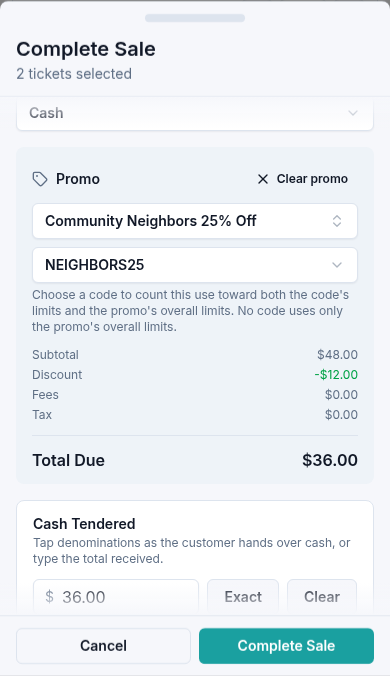
Enter Cash Tendered, or choose Exact if the customer gives the exact amount due. Check the amount, then select Complete Sale. Wait for Sale Complete before handing over tickets.
For customer details, change, and receipts, see Sell tickets for cash.
If the promotion is unavailable
Confirm the code with the customer and check that you selected the correct event time and ticket types. Ask an organization administrator to review the promotion's status, targets, timing, and usage limits. Do not assume that an offer for another event applies to this sale.
If an unexpected message remains, include the promotion name and event when contacting support.