Manage manual tax configurations
Use a manual tax configuration to save the rates and pricing treatment your organization has established. You need permission to manage tax settings; an organization owner can follow these steps. Get the correct rates and tax inclusion choice from the person responsible for your organization's tax setup.
Create a configuration
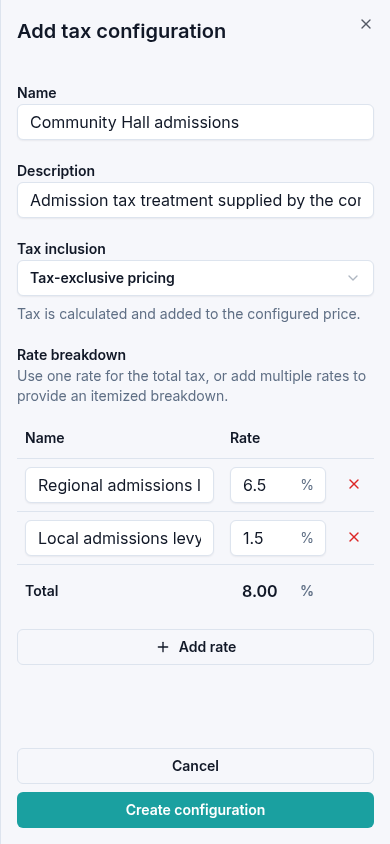
- Open Settings → Taxes and select Add configuration.
- Enter a recognizable Name and, optionally, a Description.
- Choose Tax inclusion:
- Tax-exclusive pricing adds tax to the configured price.
- Tax-inclusive pricing treats the configured price as already including tax.
- Enter the first rate's name and percentage in Rate breakdown.
- Use Add rate if the treatment has more than one component. Check Total before saving. The remove control beside a rate removes that component.
- Select Create configuration.
The save action remains unavailable until the configuration has a name and a valid rate breakdown. Correct any message shown beside the rates, such as a missing name, a negative percentage, or unsupported precision.
Edit a saved configuration
Open the configuration's actions menu and select Edit. Update the name, description, inclusion choice, or rates, then select Save changes. Reopen it to check the saved values. Cancel leaves the saved configuration unchanged.
Built-in configurations such as No Tax do not offer the same edit or delete menu as manual configurations.
Make it available to a venue
- Open Venues & Seat Maps and select the venue's name.
- In its tax settings, select the checkbox beside the configuration.
- Keep or change the default according to the venue's established tax setup.
- Select Save tax settings and reopen the venue to check the selection.
A venue can have an additional configuration available while retaining its existing default. Creating a configuration alone does not select it for an event. Choose the event's tax configuration and review the treatment before selling tickets.
Delete an unused configuration
Open its actions menu, select Delete, and confirm Delete tax configuration? Only delete a configuration you no longer need.
If Eventyr reports Tax configuration is assigned to existing resources., it remains saved. Review where it is used before trying again. Removing an unused optional venue assignment may resolve that reference, but configurations still required by other records cannot be deleted.
For help with an unexpected message, include the configuration and venue names when you contact support.