Choose an event's tax configuration
Select the tax treatment your organization has established for the event. You need permission to manage events; an organization owner can follow these steps. Confirm the appropriate configuration with the person responsible for your organization's tax setup.
Choose the event default
- Open Events, select the event, and open Taxes & Fees.
- In Default Tax Configuration, choose the required treatment.
- Select Save. If a confirmation appears, review the affected event times before continuing.
- Wait for Taxes and fees saved. Reopen the tab to check the selection.
The available choices come from the event's venue. If a configuration is missing, check that the event uses the correct venue and that the configuration is available to that venue.
Understand the effect on a ticket price
For manual configurations, the inclusion choice determines whether tax is added to the configured ticket price or included within it. For example, with a $24.00 ticket, an illustrative 8% rate, and no additional fees:
| Treatment | Tax shown | Customer pays |
|---|---|---|
| Tax-exclusive | $1.92 | $25.92 |
| Tax-inclusive | $1.78 | $24.00 |
These figures illustrate the difference; use your organization's actual setup. Check the total before completing a box-office sale.
Change the default after tickets have sold
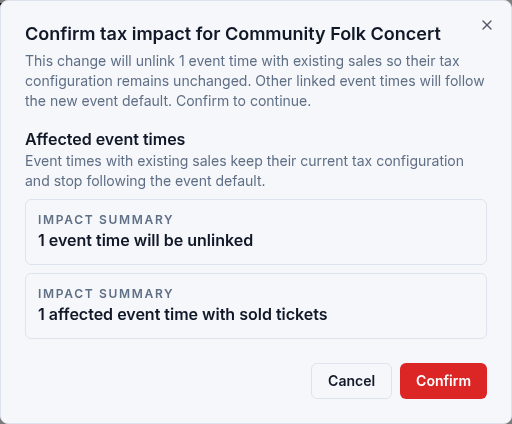
A confirmation such as Confirm tax impact for Community Folk Concert explains which event times are affected. Review the counts before selecting Confirm, or select Cancel to leave the change unapplied.
Event times with existing sales keep their current tax configuration and stop following the event default. Changing the default does not recalculate those completed orders. A new event time created afterward inherits the new default.
If an event time uses an unexpected treatment, check whether it retained an older configuration after a default change. Include the event name, scheduled date, and expected configuration when you contact support.