Create an automatic ticket discount
An automatic discount applies to eligible bookings without asking customers to enter a code. You need permission to manage the event's promotions.
Create the offer
- Open the event's Promos page. Select Create Promo for an empty list, or Add Promo, then Create new promo, if offers already exist.
- Enter a clear Name (visible to customers).
- Choose the Discount type and enter its amount. Fixed per Ticket discounts each eligible ticket; Fixed per Order discounts the order.
- Under How customers get it, select Automatic discount.
- Expand Advanced rules and timing if you need limits. For a group offer, enter Min tickets per order. Use Max redemptions across this promo to limit how many bookings can redeem it.
- Select Create Promo.
- Review the event target and offer details. The new offer starts Inactive; select Inactive to make it Active when you are ready.
For example, Sponsored Community Pair could discount each $24 admission by $24, require at least two tickets in a booking, and allow ten redemptions. A single-ticket booking would not qualify. For a fully sponsored booking, use a fixed dollar discount; a percentage discount cannot make a paid online order free.
Check the customer's result
Open the event's public listing and select tickets that meet your offer's rules. At checkout, check that the offer name and discount appear in the summary without entering a promo code. On a phone, select Show details to open the summary; Hide details returns to the compact total.
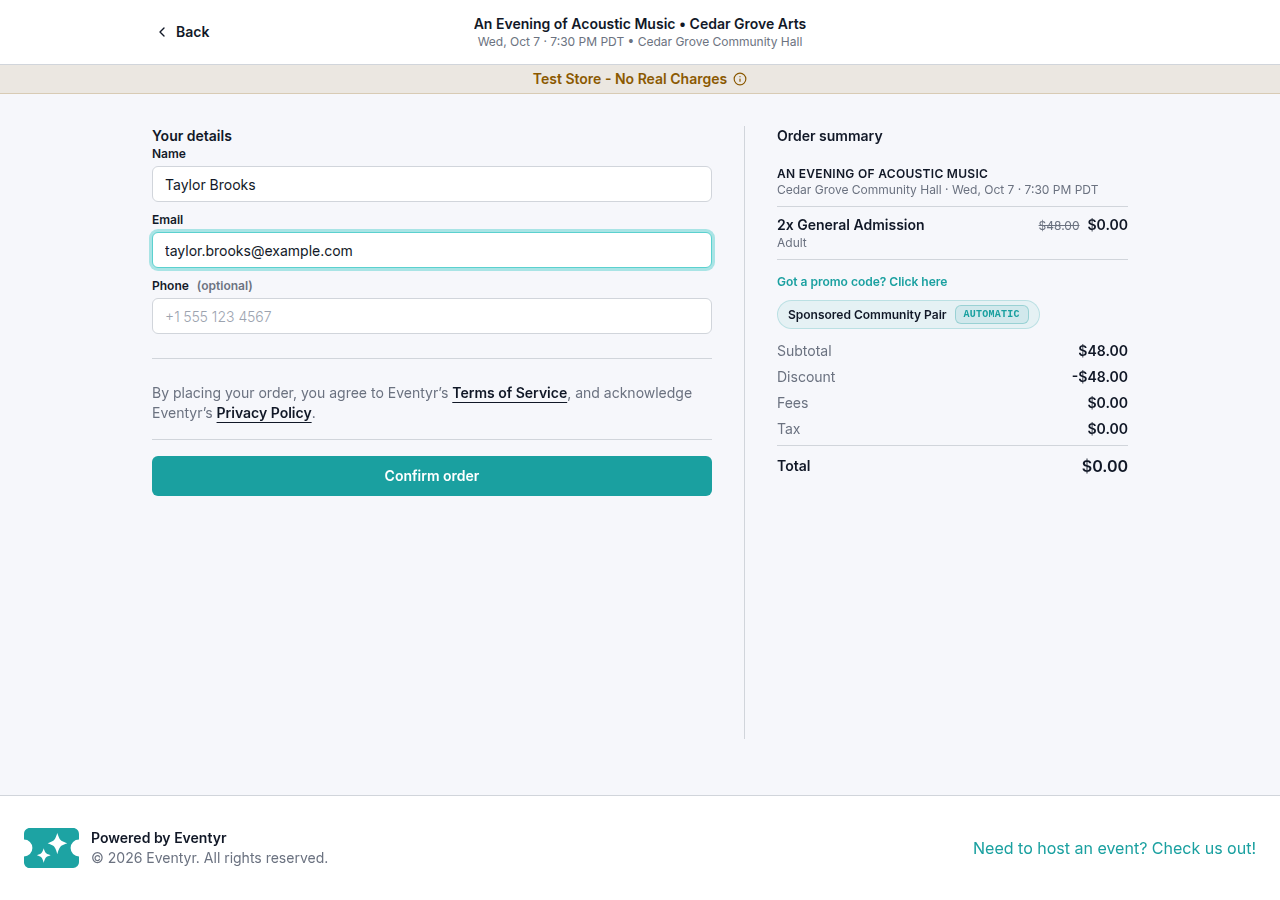
If the discount covers the entire amount due, the customer enters their contact details and selects Confirm order. Otherwise, check the remaining amount before continuing with payment.
A booking below your minimum does not receive the offer. If a qualifying booking is missing the discount, check that the promotion is active, targets the correct event, and has not reached its limits or ended.
To stop future redemptions, pause or retire the promo. For an unexpected result, contact support with the event, offer name, ticket quantity, and amount shown.