Change a collection's eligible events
Use Eligible Events when the event times offered with a collection need to change. You need permission to manage the collection; an organization owner can complete these steps.
Update the selection
- Open Collections, then the collection you want to change.
- Open Eligible Events.
- Select an event to include it, or clear a selected event to remove it. On a phone, open the button showing the number selected to see the choices, then close that menu when finished.
- Review the included event times under the selected events. Check the dates and venue carefully.
- Select Save and wait for Eligible events saved.
- Reload and check that the intended events and event times remain selected.
For example, Cedar Grove Live could replace Folk Songs with An Evening of Acoustic Music while retaining Acoustic Sessions and Songwriting Workshop.
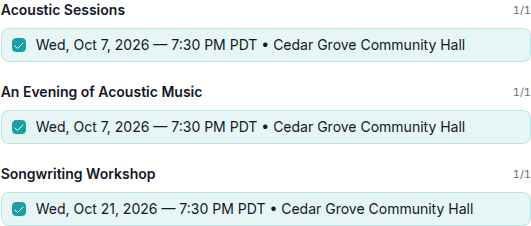
Include only certain event times
If an event has several event times, use the checkboxes under that event to choose individual dates. Check the date, time, and venue before selecting or clearing a checkbox. You can leave one Acoustic Sessions date included while excluding its later event time and keeping both Folk Songs dates.
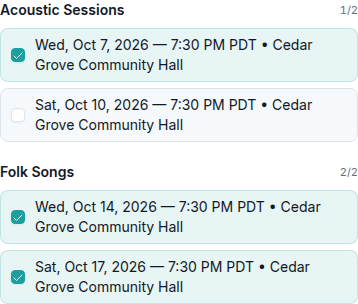
Select Save, wait for Eligible events saved., then reload to check the selection. To restore an excluded date, select its checkbox and save again.
Availability consequences
Review how the change affects existing passes and the offers available to new customers.
Passes already sold keep their original choices
Changing the collection does not replace the eligible event times on an existing pass. A customer whose pass originally included Folk Songs can still choose it after you remove that event from the collection, provided the event time remains available for redemption. Adding An Evening of Acoustic Music does not automatically add it to that customer's choices.
The customer can redeem through their wallet. If they need help choosing a different event time, review their request using the customer's pass booking.
Removing an event from a collection is not the same as canceling its event time. Choose the action that matches what has changed.
When the change would stop the public offer
If you remove every eligible event from a published collection, saving opens Confirm collection availability changes. Review the collection listed as Will be unpublished.
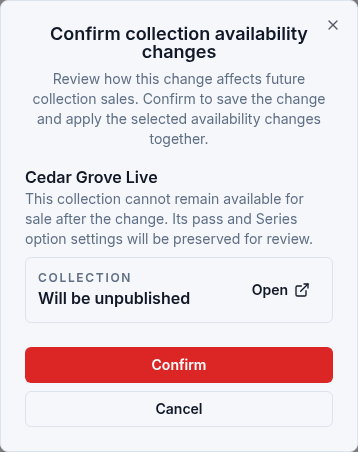
Select Cancel to leave the saved collection unchanged. Your draft selection remains in the editor so you can revise it. Select Confirm only when you intend to save the change and stop offering the collection publicly.
After confirmation, the collection becomes a draft. Its existing pass-option settings are preserved. To offer it again, select the intended eligible events and save, review the options, then select Publish Collection. Saving the replacement selection alone does not publish it. Open the public page and check Configure Passes after publication.
When some offers can stay available
A change can make one Series option invalid while leaving a Flex offer usable. In that case, Confirm collection availability changes asks you to choose:
- Keep collection published disables the affected options listed in the review. The remaining valid offer stays on sale.
- Unpublish collection stops the public offer and preserves the enabled settings of the pass and Series options for review.
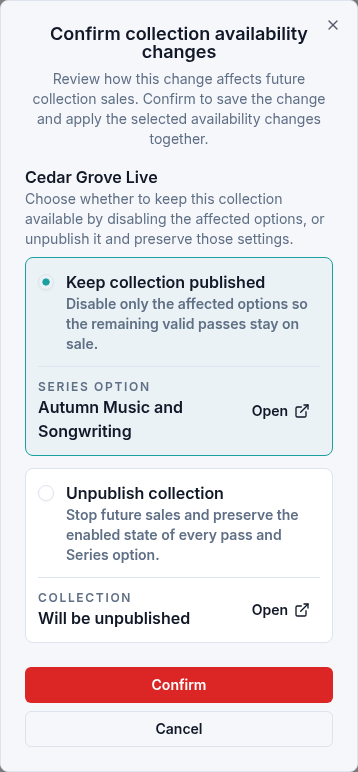
For example, removing Folk Songs from a Series with three event times can make that Series unavailable while the collection's Flex pass remains usable. Read the listed consequences, select the intended choice, then select Confirm. Use Cancel if you need to reconsider; it leaves the saved catalog unchanged.
After saving, reload and check the collection and its options. If you kept it published, check the remaining offer on the public page. Review and repair Series options before offering them again.
If you cannot save the selection
Read the warning before continuing. Event times must be compatible with the collection's Tax configuration. Check the intended settings with the person responsible for your organization's tax setup instead of changing them just to clear a warning.
Also review Pass Options & Pricing if the collection no longer has a suitable offer. Include the collection name and exact warning when contacting support.