Cancel an event time
Cancel an event time when that event time will not take place. You need permission to manage events. Check the event, date, and time carefully.
Cancellation makes the event time's admissions unusable. Customer order resolution is a separate step: refunds, exchanges, admission release, and pass credit restoration do not happen automatically.
Review and confirm the cancellation
- Open Events, select the event, and open Event Times.
- Open the event time's three-dot actions menu and select Mark Canceled.
- If it is published, review Unpublish before canceling?. Select Keep event time to leave it unchanged, or Unpublish and continue to remove it from sale and review the cancellation.
- In Cancel event time?, read the effect on admissions and the Cancellation email preview.
- Optionally enter Explanation for customers (optional). Give a short, factual reason. Follow the field's guidance to leave out links, refund instructions, and outcome promises.
- Review the explanation in the preview, then select Cancel and notify customers.
- Check that the event time shows Canceled.
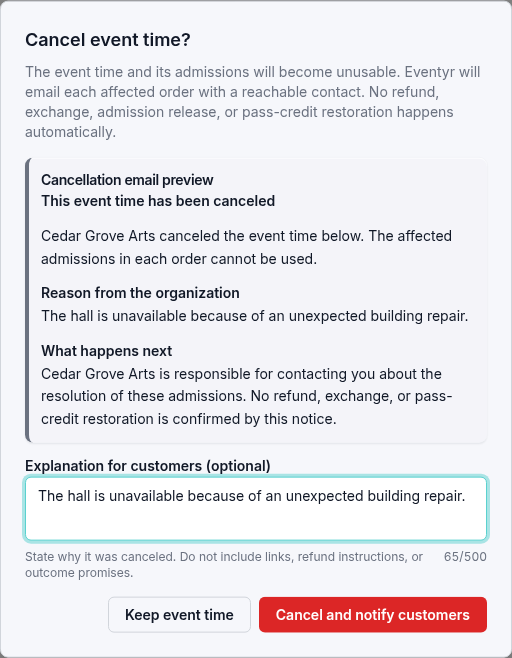
Eventyr sends the notice to affected orders with a reachable contact. The notice explains that the organization will follow up about the admissions.
Review affected customer orders
Select the warning labeled Cancellation resolution required on the event time card. The cancellation page lists orders requiring action and their communication status. Select an order reference to review that order.
You can also find unresolved cancellations from Reports. In Overview, select Open Exceptions, then find the event time under Canceled-event obligations. Check its Admissions, Pending, and Recognized columns. Select the event time's date and time to open its cancellation resolution page and review the affected order references.
Follow your organization's policy and the customer's agreed resolution. For cash-paid tickets, see refund a cash-paid ticket order. Keep track of unresolved admissions and communication exceptions on the cancellation page.
If cancellation or notification fails, check the event time's current status before trying again. Include its event name, date, affected order reference, and exact message when contacting support.