Managing event time status
After an event time has ended, mark it completed. You need permission to manage events. Check the event, date, and time carefully before changing its status.
Mark the event time completed
- Open Events, select the event, and open Event Times.
- Find the event time and open its three-dot actions menu.
- Select Mark Completed.
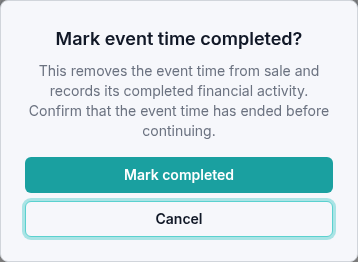
- Read Mark event time completed?. Select Cancel if you need to check anything first. Otherwise, confirm Mark completed.
- Check that the event time shows Completed and its sales switch shows Disabled.
If you are looking for event times that still need this step, use the finalization report.
Reopen a completed event time
If you marked an event time completed in error:
- Open its actions menu and select Reopen as Active.
- Review Reopen event time?, including the effect described on event revenue. Select Cancel to leave it completed, or Reopen event time to continue.
- Check that the card shows Scheduled.
Sales remain Disabled after reopening. Review the event time's date and sales settings before deciding whether to enable it again.
Archive a completed event time
Open its actions menu, select Archive, then confirm Archive in Archive event time?. The event time moves to Archived Event Times below the main list.
To bring it back, find it under Archived Event Times and select Unarchive. Its Completed status is preserved. Archiving and reopening are separate actions.
To organize the whole event, see archive and restore events. If the status does not update, include the event name, scheduled date and time, and exact message when contacting support.