Create a reserved-seating event
A reserved-seating event lets attendees choose particular seats. You need permission to manage events; an organization owner can follow these steps. First create the venue and save its seat map.
Create the event
- Open Events, then Create Event.
- Enter the Event Name, URL Slug, short description, and full description. Explain any conditions that affect which ticket an attendee should choose, such as eligibility for a student price.
- Choose the Default Venue and select Create Draft Event.
Choose the layout and prices
- Open Seating & Pricing.
- Choose Reserved Seating and select the venue's Default Seat Map.
- Select Save Seating Type.
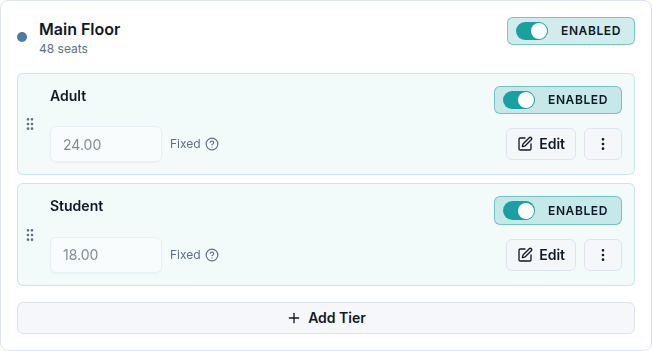
- Find a category from your map, such as Main Floor, and select Add Tier.
- Choose the tier label, enter its price, and select Save for that tier.
- Repeat for any other prices in the category and for other seating categories.
For example, the same Main Floor seats can offer an Adult price of 24.00 and a Student price of 18.00. These are alternative prices for each seat; adding another price tier does not add more physical seats.
Reopen Seating & Pricing and check your saved prices before publishing.
For the difference between a set amount and a customer-chosen amount, see Fixed and Variable Minimum Pricing.
Add and publish an event time
- Open Event Times and add an event time with the intended date and time.
- Check its venue and seating settings, along with the sales dates.
- Select Publish Event and make sure the event time is enabled.
- Open the public event page and choose its ticket link.
- Select a seat. If it has multiple price tiers, choose the appropriate one. Review the seat and price in the selected-ticket summary. On a phone, select Review Summary to see it.
For changes to when booking opens or closes, see Set sales dates for an event time. Attendees can follow Choose reserved seats.
If a map or price is missing, check the selected venue, saved seat map, and category prices. Include the event, event time, and message shown when you contact support.