Create a seat map
Create a seat map when an event needs assigned seats. You need permission to manage venues; an organization owner can follow these steps. First create the venue and make sure the pricing category labels you need exist.
Build the first section
- Open Venues & Seat Maps, find your venue, and select Add Seat Map.
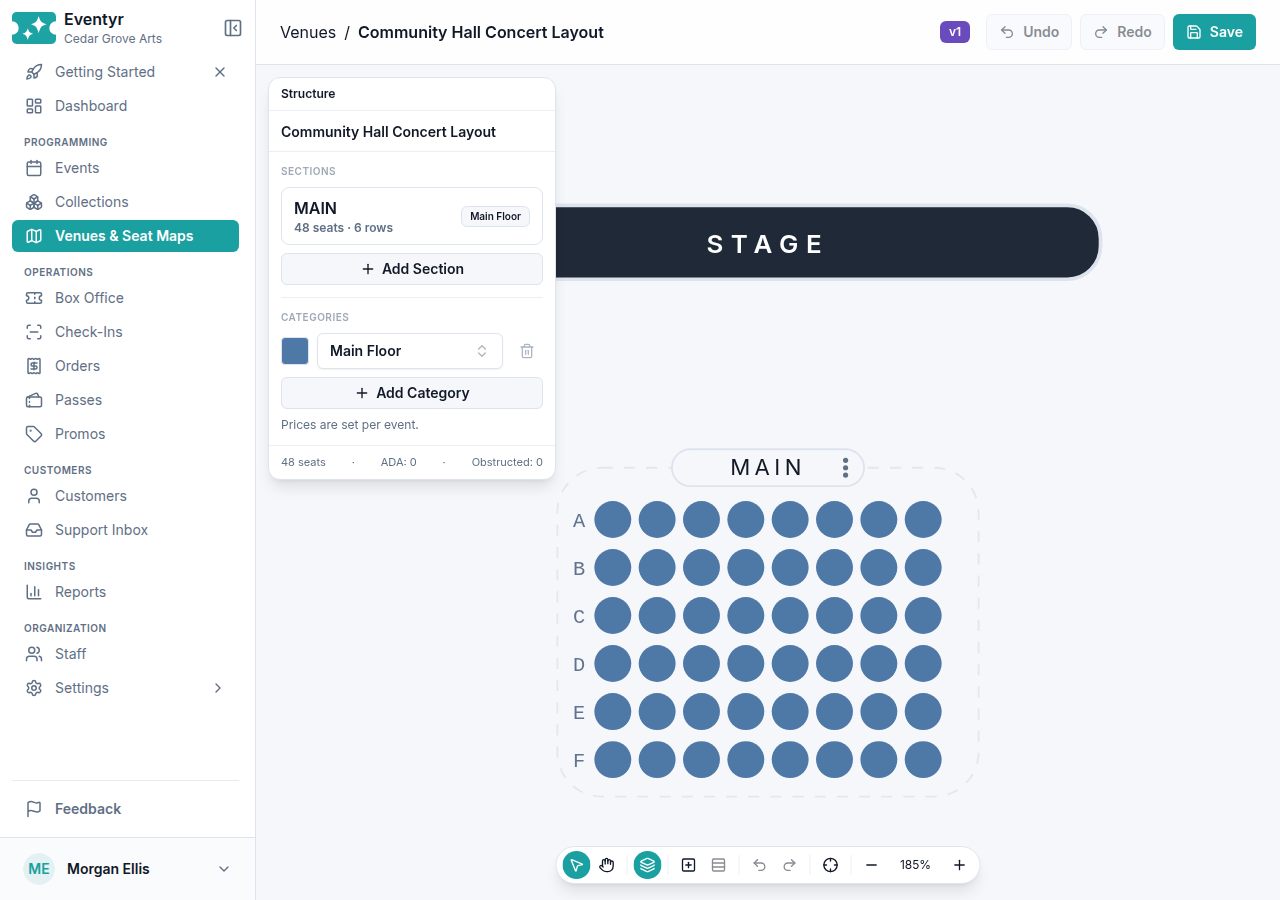
- Enter a descriptive name at the top of Structure, such as Community Hall Concert Layout.
- Under Categories, choose an existing pricing category, such as Main Floor. A category label does not set the ticket price.
- Select Add Section. Enter Section Name, Rows, and Seats / Row. For example, six rows of eight seats create a 48-seat section.
- Set Row Label Start Override if you want a particular first row label, such as A. Check the row-label preview before continuing.
- Select Create. The new section appears in Structure. The form clears so you can add another section; select Cancel when you are finished.
Check that the layout matches the physical venue before using it for sales. Use Undo and Redo to reverse or restore a layout edit. The icon toolbar also provides these actions on a phone.
Save and reopen
- Select Save and wait for Seat map saved.
- Check the version shown beside the map name. Your first saved version is v1.
- Reopen the map to check its name, sections, rows, and seat counts.
A missing map name or unresolved category prevents saving. Complete the highlighted fields and choose an existing category before trying again.
For uneven rows or different numbering, see Edit seat-map rows. You can also mark accessible and obstructed-view seats.
Make a new version
Open the latest map, make your changes, and select Save. The editor opens a new version, such as v2. For example, you can rename the map while keeping its seating layout.
If you open an older version, it shows Read-only and Save is unavailable. Select Open Latest to continue editing the newest version.
To use the saved layout for ticket sales, create a reserved-seating event.
For help with a map that will not save, include the venue, map name, version, and the message shown. See Contact support.
To group individual seats for event pricing, assign seat-map categories.