Edit seat-map sections
Use section settings for changes that apply across part of a venue layout. You need permission to manage venues. Open Venues & Seat Maps, select the latest seat map, and choose a section under Structure.
Set section defaults
- Section name changes the section label. Press Enter to finish editing; letters are converted to uppercase.
- Default seats sets the seat count for rows added afterward. Changing it does not resize existing rows.
- Seat start sets the first seat number for rows that use the section's numbering. A row with its own start number keeps that override.
- L→R and R→L set the numbering direction across a row.
- Left and Right under Row label side choose where row labels appear.
- Row gap and Seat gap change the spacing in the drawing. Check the layout against the venue before saving.
For a single row's count, offset, or numbering override, see adjust rows in a venue seat map.
Add a row and skip unwanted letters
- Set Default seats to the size of the new row.
- If necessary, add a letter under Skipped characters. Use its remove control to allow that letter again.
- Select Add Row. Check the updated seat and row counts in Structure.
- Close the selection details with the × button if the panel covers the row controls, then select the new row to inspect it.
- Select Save and reopen the new map version to check the result.
For example, a six-row section ending at F can skip G and add a six-seat row H. Its original eight-seat rows remain unchanged. If H follows a section start of 3 with right-to-left numbering, its numbers run from 8 to 3 across the drawing.
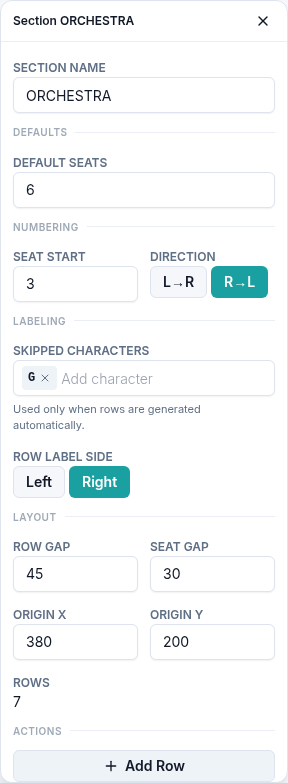
Skipped characters affect automatically generated labels; they do not rename existing rows.
Remove a row or section
Select a row and choose Delete Row, or select the section and choose Delete Section. Check the seat count after the removal. If it was a mistake, use Undo in the map toolbar before leaving the editor, check the restored layout, and Save.
These changes create a new venue-map version. Review the map selected for the event before using it for sales. See create and version a venue seat map.
If the saved numbering differs from the drawing, include the venue, map version, section, and affected row when you contact support.