Assign or remove seat-map categories
Seat-map categories group seats for event pricing, such as Main Floor and Front Row. You need permission to edit the venue's seat maps. Prices are set for each event.
Open Venues, then select the seat map you want to edit. These steps change the venue layout; an existing event time keeps its saved seating layout.
Add a category
- In Structure, find the category list and select Add Category.
- Open the new Category name field.
- Search for the category you want to use. To create a new name, enter it and select Create "name" category, such as Create "Front Row" category.
- Check that the new category appears in the list.
Adding a category does not assign seats to it automatically.
Assign a seat
- If the Structure panel covers the map, use Toggle structure panel in the map tools to hide it.
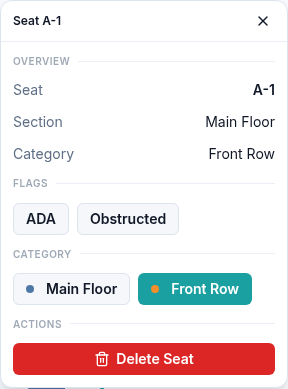
- Select the seat on the map, such as A-1.
- Under Category in the seat details, select the desired category.
- Check the category shown in the seat's overview, then select Save.
- Reopen the map to check the saved version.
Remove a category
In Structure, select the trash button beside the category. Seats assigned to it move to the first remaining category. The seats themselves remain in the map. Check their assignments before selecting Save.
Use Undo in the map tools to restore an accidental category removal, or Redo to apply it again. You cannot remove the last category while the map still contains a section.
Removing a category from this layout does not change an existing event time's saved seating map. Review the event's seating and pricing separately before using the revised layout for future event times.
If an assignment looks wrong, check the selected seat and category name before saving. Include the venue, map version, and seat label when contacting support.