Redeem a Flex Pass
A flex pass lets you use its credits for eligible event times. Depending on the event time, you choose general admission or a reserved seat. You need available credits and either ownership or manager access.
Choose an event time
- Open My Wallet on the organizer's site.
- Select Passes for a pass you own, or Shared for a pass you manage.
- Find the pass name, option, and pass number.
- Under Redeem Pass Credits, select Choose an Event Time.
- Check your remaining credits. In Available Event Times, check the event, date, time, and venue, then select Redeem beside the event time you want. On a phone, this button appears as a right arrow.
Only events with an event time you can redeem appear in this list. If you have used your pass's allowance for an event, choose another event to use your remaining credits.

Choose your admission
Follow the steps for the event’s seating type.
Book general admission
- On the event's admission page, use the quantity control to select your general admission ticket.
- On a phone, select Review Summary to reach the order summary.
- Review the admission and event details, then select Redeem.
- Return to the pass in your wallet. If you manage a shared pass, select Shared after redemption to find it again.
The redeemed event appears under Your Tickets and uses one pass credit.
Choose a reserved seat
For an event time with reserved seating, select an available seat on the map instead of using a general admission quantity control. On a phone, select Review Summary after choosing the seat.
Check the section, row, and seat number in the summary, then select Redeem. For example, choosing Orchestra • Row A • Seat 1 uses one available credit and creates a ticket for that seat at the selected event time. An unused two-credit pass then has one credit remaining.
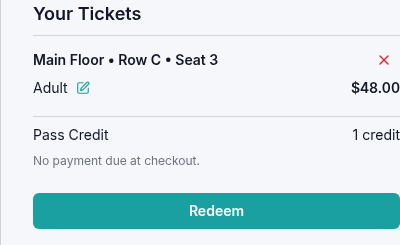
Check the saved ticket after returning to Passes. Select Choose an Event Time to check any remaining credits. If you need to change the reservation, contact the organizer with your pass reference rather than making another booking to replace it.
Get your ticket
In your list of booked event times, check the date, time, and venue, then select Actions on the ticket (⋮ on smaller screens), then Download or Print. Use Download all or Print all in the pass header's Actions menu to prepare all available tickets on the pass. The Wallet Tickets page opens for printing or saving a PDF through your browser. See printing and PDF instructions.
People with viewer access can download or print these available tickets, even though they cannot redeem credits themselves.
If you cannot find an event time
Use the choices shown for your pass and check its remaining credits. If the event time you expected is missing, or you need to change a redemption, contact the organizer with your pass or order reference before making another selection.
Credit expiry and event limits
Check the credit expiry and any limit shown when buying your pass. Unused credits cannot be redeemed after their deadline, but tickets already issued remain valid.
A limit on event times per event applies to each pass across all its bookings, including past event times. Each admission uses one credit and one place in that allowance, even when booking the same event time again. Returned and extra credits follow the same limit. If a booking is released, its place in the allowance becomes available again.
Your pass keeps the expiry and limit you purchased, even if the organizer changes the current offer. Contact the organizer if you need help with a booking that would exceed the limit.