Share access to a ticket
Share a ticket when someone else needs to use it. Sharing gives the recipient access to the ticket; you remain its owner.
Send a share link
- Open your wallet with the email used for the purchase.
- Select Tickets and find the ticket you want to share.
- Open Actions on that ticket and select Share.
- Enter the person's email in Recipient email, check it carefully, and select Send share link.
- Check that the recipient appears under Shared with, then select Done.
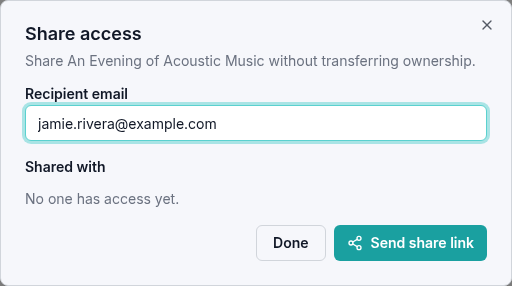
Each ticket has its own sharing action. If your order has several tickets, choose the individual ticket each person needs.
Open a ticket someone shared with you
Open the share link sent to your email. The ticket appears in My Wallet under Shared, with a Shared from label identifying its owner. You can also sign in to the organizer's wallet using the email address that received the invitation, then select Shared.
The ticket's QR code and Actions menu are on its row. Follow Using your tickets to prepare for the event. A recipient cannot share the ticket with another person from their wallet; ask the owner to manage access.
Remove someone's access
- In your own Tickets tab, find the ticket.
- Open Actions and select Share.
- Under Shared with, select Revoke for the person whose access you want to remove.
- Confirm that their email disappears from the list, then select Done.
The ticket no longer appears in that person's Shared wallet. If you are concerned that someone has already saved a ticket copy, contact the organizer for help before the event.
If a shared ticket is missing
Check that you are on the correct organizer's site and signed in with the exact email address used for sharing. Ask the owner to check Shared with; they may have used another address or revoked access.