Access your wallet
Your wallet keeps your tickets and passes for an organizer together. To open it, you need access to the email address used for your purchase.
Open your wallet
- Open the organizer's Eventyr event site and select My Wallet. On a phone, the wallet icon may appear without the text label.
- In Email, enter the address used for your purchase.
- Select Send magic link.
- Open the email and follow its sign-in link. Your wallet opens after sign-in.
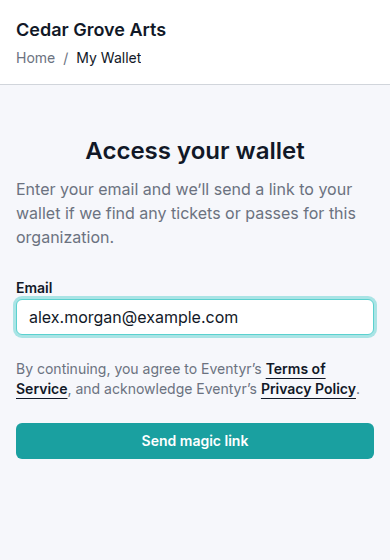
Use your purchase email. The name and address shown here are examples.
Use the email's verification code instead
After selecting Send magic link, you can leave the wallet sign-in page open and read the verification code in your email. Enter it in Verification code, then select Continue. This also opens your wallet and is useful when you read email on a different device.
When the wallet is inside another website
An organizer may place its wallet directly inside its own website. In this view, enter your purchase Email and select Send verification code. Read the six-digit code in your email and enter it in Verification code; the wallet opens when the code is accepted.
Select Use a different email to return to the email field if you need to correct the address. Request a new code after making the correction.
Your tickets are under Tickets. Reloading the page keeps your wallet session. When finished on a shared device, select Log out; the sign-in form returns and remains signed out after a reload.
If the email does not arrive
Check your spam or junk folder and confirm that you entered the same email address as your purchase. Select Send another link, check the Email field, and select Send magic link again to request a new message.
Make sure you are on the correct organizer's site: the wallet you open is for that organizer. If you no longer have access to your purchase email, contact the organizer with your event name and order reference for help.
Keep sign-in links and verification codes private. Do not include them in a support screenshot or forward them to another attendee.