Find tickets and orders
Use your wallet to check which tickets you have and open the order they belong to. Start by signing in with your purchase email on the organizer's site.
Find an event's tickets
- Select Tickets in your wallet.
- Find the event name. Check the date, time, and venue on each ticket.
- On a phone, swipe between tickets for the same event or use the arrows below the ticket. On a larger screen, the tickets appear together.
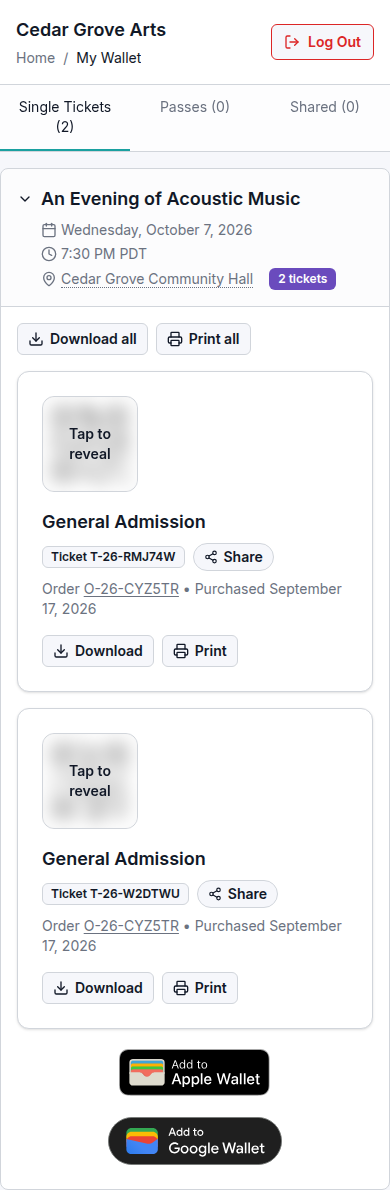
This example has two tickets for the same event.
Open the order
On a smaller screen, select the Actions (⋮) menu on a ticket or pass, then View Confirmation. On desktop, select the underlined reference beside Order. The order page opens with the event and purchase details. Tickets bought together can show the same order reference; each still has its own ticket code.
Keep the order reference handy when contacting the organizer. Avoid sending ticket QR codes or sign-in links in a support request.
Open a detailed receipt
- Open the order from Actions → View Confirmation on a smaller screen, or from its reference on desktop.
- Select View detailed receipt.
- Check the order reference, customer, event, and item details.
- Select Print receipt to use your browser's printing options.
The receipt remains available after reloading while you have access to the order. Keep receipts private: they include purchase and customer details.
Print the order's tickets
On the order page, select Print beside Your Tickets. A printable ticket page opens in a separate tab. Check that it contains the tickets you need; use its Print button if you need to open the printing options again.
For printing a single ticket or saving tickets from your wallet, see Prepare your tickets for the event.
If you cannot find a ticket
- Check the organizer name at the top of the page and the email you used to sign in.
- If you bought a pass, check Passes. Items shared with you appear under Shared.
- If your expected purchase is still missing, contact the organizer using the details on the event page or your confirmation. Include the event name, date, and order reference if you have it.
Prepare your tickets for the event.
Find canceled tickets
If an event time was canceled, select Show Past Tickets under Tickets. See how to find the canceled booking and follow up with the organizer.
If an order link shows Access Required, Access Denied, or Order Not Found, see Troubleshoot booking access.