Using your tickets
Before heading to the event, find your tickets in your wallet and check the event date, time, and venue. The steps below apply to tickets with a QR code available in the wallet.
Show a ticket on your phone
- Open My Wallet on the organizer's site and select Tickets.
- Find your ticket and check its event date and seating details.
- The QR code appears on each available ticket. Show that code to the event's check-in staff. If you have several tickets, show the appropriate ticket for each admission.
After check-in, a green circle check appears beside the event name. The QR code remains accessible if you need to show your ticket to staff again.
Tap the ticket number beside the seating details to copy it. On a phone, groups with multiple tickets have arrows below the ticket and a ticket counter. Swipe or use the arrows to choose the ticket you need. Booked tickets under each pass use the same controls.
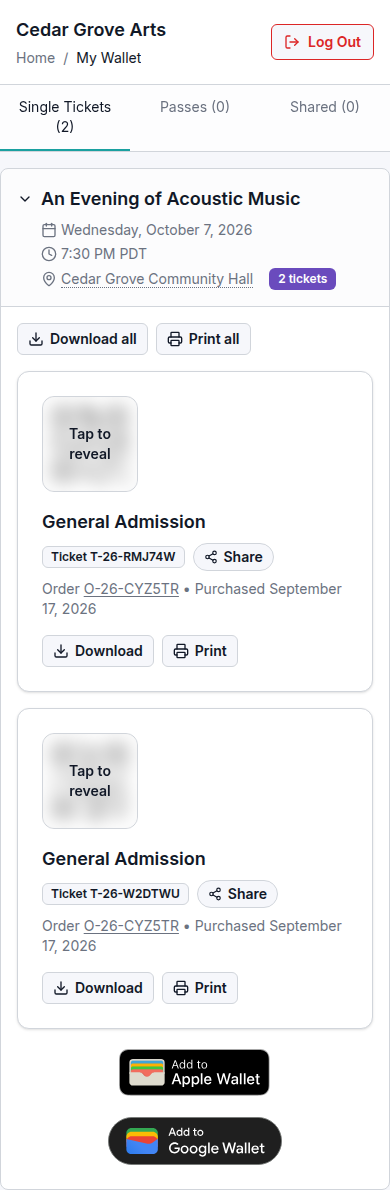
Print tickets or save a PDF
On smaller screens, the Actions menu uses the three-dot (⋮) button.
- Open Actions on a ticket and select Print, or select Print all below the digital wallet badges in Tickets when the group has multiple available tickets. For a pass, select Actions in the pass header, then Print all.
- A Wallet Tickets page opens in a new tab, followed by your browser's print dialog. Choose your printer and complete printing.
- To keep a PDF copy instead, select Download in a ticket's Actions menu or Download all in the wallet. On the page that opens, use Save as PDF or the equivalent option in your browser's print dialog.
Print all and Download all apply to the available tickets in that event group, or to the available bookings on a pass in Passes. Check the tickets on the new page before printing or saving them.
If nothing opens, allow popups for the organizer's site and try again. The new page also has a Print button if you need to open the print dialog again. The names of printer and PDF options depend on your browser and device.
If a code or action is unavailable
Read the message on the ticket and check what its status means. If you cannot resolve it, contact the organizer with your order reference before the event. Keep QR codes and saved ticket files private; they contain information used for admission.