Settling a collect-later order
Use the existing order when a customer is ready to settle a collect-later booking. You need access to its payment actions. Check the customer, tickets, and outstanding balance before proceeding.
Open the payment options
- Find and open the order.
- Expand View notices and find Payment outstanding.
- Select Collect payment to open Next Step for Balance Due.
- Choose Payment Link, In-Person Card, Cash, or Comp according to the agreed outcome. Review the amount shown for that choice.
Settlement Options
Let the customer pay online
Choose Payment Link to email instructions, copy a link, or display its QR code for the customer. Follow Managing payment links for sending, replacing, and revoking links. Sending instructions does not record payment; check the order after the customer finishes paying.
Collect a card payment on a terminal
Use a configured internet-connected reader for this web workflow.
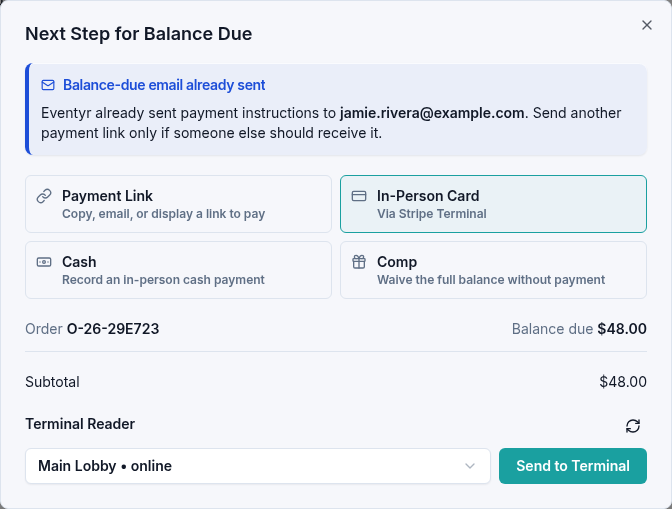
- Select In-Person Card.
- Choose the intended Terminal Reader. Use Refresh readers if needed.
- Review the amount, then select Send to Terminal.
- Ask the customer to follow the reader's payment prompts.
- Wait for the result in Eventyr, then check that the order's balance has cleared.
This charges the card through the selected terminal; it is not a record of an unrelated payment already taken elsewhere. If the result is pending, keep the existing payment open. Use Check now when offered to check its status. If payment fails, follow the displayed Retry or Cancel controls and review the order before trying another method. Do not start another charge while the first result is unresolved.
Receive the balance in cash
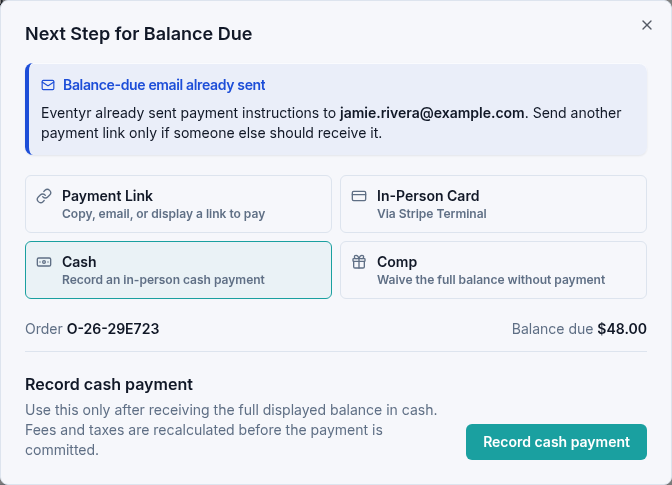
If the customer pays in person with cash:
- Find and open the order.
- Expand View notices and find Payment outstanding.
- Select Collect payment, then Cash in Next Step for Balance Due.
- Check the displayed balance and receive the full amount in cash.
- Select Record cash payment. Read Record full cash payment?, then select Record payment once you have received the cash.
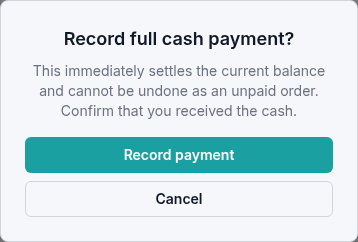
The order's balance due clears after the payment is recorded. Recording this payment settles the balance immediately; it cannot be undone by returning the order to unpaid. Use the cash refund process if an actual refund is needed.
Waive the full balance
If your organization decides the customer should not pay the remaining balance:
- Open Collect payment from the order's Payment outstanding notice.
- In Next Step for Balance Due, select Comp.
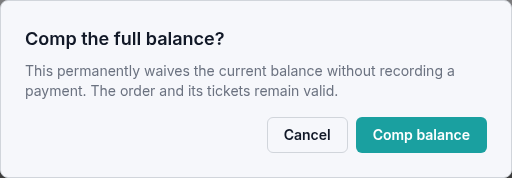
- Select Comp balance and read Comp the full balance?
- Choose Cancel to leave the booking unchanged, or Comp balance to permanently waive the current balance.
- Reopen the order and check that no balance remains due.
The order and its existing tickets remain valid. This records a concession, with no payment received. Use the cash option when the customer actually pays in cash. For a new complimentary booking, follow Issue complimentary tickets.
If something goes wrong
If the email does not arrive, ask the customer to check their spam folder and confirm which address was entered. If recording payment fails, reopen the order and check its balance before trying again. Include the order reference and exact message when contacting support.
Check in attendees
After confirming that the balance is settled and the tickets are active, use the attendee check-in screen when the customer arrives. Settling an order does not automatically record attendance.
If a check-in update fails, check the current ticket status before trying again. Contact Us with the event time, order reference, and message if you need help.