Setting up Stripe Terminal
Stripe Terminal lets you take in-person card payments through a reader linked to your organization's payment account. For the web box office, use an internet-connected standalone terminal. You need access to payment settings and a configured organization payment account.
Choose the right reader setup
Open Settings → In-person Payments. Standalone Terminals work with the web or mobile box office. Bluetooth Readers pair through the Eventyr Box Office mobile app; they cannot be paired with the web box office.
Use Order readers to view supported hardware through Stripe, and View orders to review existing hardware orders. Follow any account-setup message before proceeding. A reader must be registered with the payment account used by the organization where you intend to sell.
Register a standalone reader
- Turn on the reader and connect it to the internet.
- In its administrator settings, choose Generate pairing code.
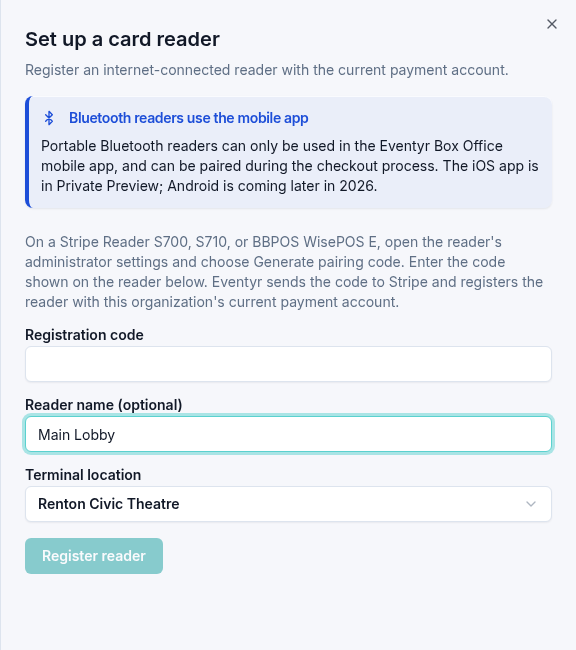
- In Eventyr's In-person Payments settings, select Set up reader.
- Enter the code in Registration code.
- Add a Reader name (optional) that staff can recognize, such as “Main Lobby.”
- Choose the Terminal location when that field is shown.
- Select Register reader and wait for Card reader registered.
If no Terminal location exists, Eventyr creates one from the business address in your payment account. If an address is required, update the account under Settings → Payments, then return to reader setup.
Prepare for the first sale
Check that staff can identify the correct reader and that it is connected. In a card sale, the Terminal Reader selector shows the registered readers and their status. If the reader is missing, check the organization and payment account before registering it again.
Follow Make a card-present sale to send a payment to the reader. Registration alone does not take a payment.
Mobile reader options
Bluetooth readers and Tap to Pay on iPhone use the mobile app's setup flow. Open Tap to Pay on iPhone in Eventyr settings and choose Enable Tap to Pay on iPhone or Enroll in Tap to Pay on iPhone. An owner, admin, or authorized operator may need to approve enrollment. Follow Apple's terms and review How to Use Tap to Pay on iPhone before taking a payment.
Turn on an iPhone passcode
Tap to Pay requires an iPhone device passcode. This is different from an Eventyr operator PIN. If setup shows Device Passcode Required, choose Open Settings. The shortcut opens Eventyr's settings; return to Settings and choose the passcode option named in the instructions, then Turn Passcode On. Eventyr shows Touch ID & Passcode or Face ID & Passcode for your iPhone. If it cannot identify the option, search Settings for Passcode. Return to Eventyr to have readiness checked again.
Continue working during a reader update
Tap to Pay and Bluetooth readers may need a software update before taking a payment. You can continue choosing tickets and seats while an update runs in Eventyr. The updating reader cannot take a payment yet. Switching between Tap to Pay and Bluetooth readers on this iPhone is unavailable until the update finishes or fails. Internet-connected external terminals and other payment methods remain available while you wait.
Tap the updating reader in the reader list to open progress within checkout and resume its selection when ready. The other local reader option shows Available after the reader update finishes. while the update is in progress. Use Back to return to reader selection, or the X to leave checkout. Both actions leave the update running.
In box office, tap Updating Reader in the center of the hold-timer and Clear bar to view progress. Elsewhere in the app, use the reader-update notification. Closing progress keeps the update running and clears any pending checkout selection. Select the reader again when you want to use it. If you keep progress open after selecting a reader in checkout, Eventyr resumes that selection when the reader is ready. Opening progress from a notification does not select a payment reader.
If the update fails, open Update failed · Retry and choose Retry. After leaving Eventyr, return to the app to check whether preparation finished or needs another attempt.
If setup fails, Contact Us with the organization, reader name or model, and error message. Do not include a pairing code or card details.