Issue complimentary tickets
Use Comp when you intend to give tickets to a customer without charging them. You need access to the organization's box office and permission to issue complimentary tickets.
Select and complete a complimentary booking
- Open Box Office, choose the Event and Event Time, then select Continue.
- Set the general admission ticket quantities. On a phone, select Review Order.
- Select Comp to open Complete Sale.
- To include the customer's name, enter Customer Name (Optional). On a phone, expand Or enter contact details manually first.
- Check that Payment Method is Comp and Total Due is $0.00.
- Select Complete Sale and wait for Sale Complete. Check the number of tickets processed and keep the order reference.
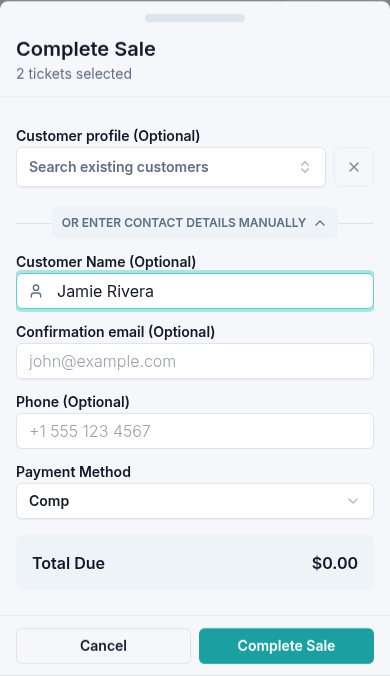
The tickets are issued without a balance to collect or a payment being recorded. You can find the order later using its reference.
If the total or payment method is wrong, select Cancel and review the selection before completing it. If you cannot use Comp, ask your organization administrator to check your permissions. Include the event time and any error message when contacting support.
Check in attendees
If the customer is arriving now and you have permission to check in attendees, use the controls in Sale Complete:
- Check the number of tickets ready to check in.
- For a group that has all arrived, select Check In All.
- For part of a group, expand Check in individual tickets, match each attendee's ticket code, and select Check In beside that ticket.
- Check the updated count before closing the confirmation.
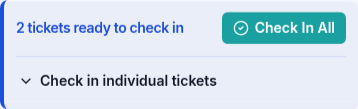
Use Undo All or an individual ticket's Undo to correct an accidental check-in. This changes attendance, not the booking or payment.
After closing the confirmation, use the attendee check-in screen to find the booking and manage attendance.
If a check-in update fails, check the current ticket status before trying again. Contact Us with the event time, order reference, and message if you need help.