Find an order
Use Orders to investigate a booking or help an attendee who has their purchase email or order reference. You need access to orders for the organization; an organization owner can follow these steps.
Find the booking
- Open Orders in your organization's administration area.
- Enter the customer's purchase email in the search box. You can also search using the order reference.
- Select the matching order reference to open its details.
- Check the customer's name and email, the event, and the items before making any changes.
If you see No orders found, check the spelling and the organization you have open. Ask the attendee for the email they used to book or their order reference.
Review the details
The Order tab shows the customer, financial summary, and purchased items. Compare Order total, Payments received, and Net paid when checking the booking's payment information.
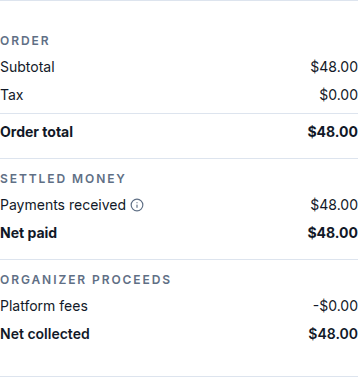
Use Financials to review the order's financial activity and summary. Use Timeline to review its activity history, then return to Order to review the customer and items.
Print the receipt
- Open Page actions on the order.
- Select Print Receipt.
- Check the customer and order details on the receipt page before printing.
The receipt opens in a separate browser page. If it does not appear, check whether your browser blocked the new page, then try again.
For a cash-paid booking that needs a refund, see Refund a cash-paid order. Follow your organization's policy and confirm the intended change with the customer.