Check in a group
Use the ticket list to find an attendee and check in the people arriving with them. You need access to check-in for the organization and the correct event time.
Open the event's check-in screen
- Open Check-Ins in your organization's administration area.
- Check the selected Event and Event Time. Confirm the scheduled date and time before admitting anyone.
- On desktop, select Start Check-In. On a phone, select Continue.
Find the attendee's order
On desktop, use the search box in Ticket List. On a phone, select Ticket List first. The box says Search by name or ticket code; you can also search using the email address used for the booking.
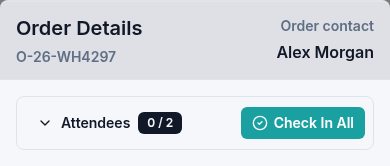
Find the matching attendee and select Check In beside their order. Order Details shows the order contact and an Attendees count, such as 0 / 2 for a two-person group with nobody checked in yet.
Admit everyone or one person
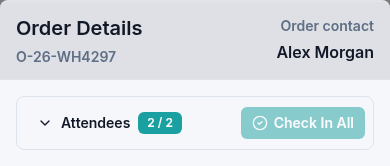
If the whole group is present, select Check In All. The count updates as people are admitted. Once all valid tickets are checked in, Check In All is unavailable.
To manage people individually, expand Attendees. Each ticket has its own Check-in or Check-out action. Check the ticket code before changing the person's status.
If you checked in someone by mistake, select Check-out beside their ticket. The checked-in count decreases. Select Check-in when that person is ready to enter again.
If the attendee cannot be found
Check that you opened the correct event time. Try the name or email used for the booking, or ask the attendee for their ticket code. No tickets match this search means the current search did not find a matching entry.
For desktop code entry and duplicate-ticket messages, see Check in by ticket code. Ask your event supervisor to resolve an order or eligibility problem before admitting someone whose ticket you cannot verify.