Create a device pairing code
Use Settings → Devices to prepare an Eventyr mobile device for your organization. You need permission to manage devices; an organization owner can follow these steps. Have the intended device ready before generating its code.
Review the operator PIN default
Require operator PIN on paired devices controls the organization default. Changing the switch saves immediately. Reopen the page to check the saved setting. Sensitive administrative actions still require an authorized operator and a fresh PIN.
Operators can set or reset their own PIN.
Generate a pairing code
- Select Pair device.
- Enter a recognizable Device name, such as Front Door iPad.
- Under Device access, select what the device should do. For a check-in-only device, keep Check-in selected and clear Sales.
- Under Operator PIN, choose Use organization default or the appropriate device-specific requirement. For example, Always require PIN makes that requirement explicit for the device. Review the allowed operators shown.
- Select Generate code.
- Keep the generated pairing code, QR, or Pairing link available while you finish setting up the intended device. Check the expiry shown on the screen.
A missing device name or an empty capability selection prevents generation. Correct Device name is required. or Select at least one capability. and try again.
Treat the code and pairing link as private setup information. The code is shown once and is no longer available after you close the pairing screen. Select Done when finished with that screen.
Finish pairing in the mobile app
Open the pairing link, scan the QR code, or enter the code in Use Device Code. The app shows Connecting this device while it checks the code and connects to your organization. Keep the app open until setup finishes.
If pairing takes longer than 30 seconds, the app returns to Use Device Code with a message. Check the connection and try again. If the code is no longer valid, generate a new pairing code from the dashboard.
Check pending invitations
The device name appears under Active pairing codes with its expiry and selected access. Refresh reloads the list. Generating the invitation leaves it pending; the device must complete pairing before it appears under Paired devices.
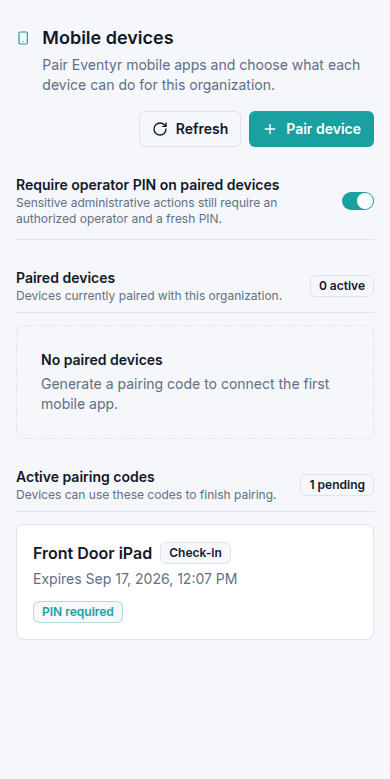
Opening Pair device again starts a new form. Cancel closes that form without generating another invitation. If the earlier code is no longer available or has expired, prepare a new code when the device is ready.
If generation fails, include the organization, device name, selected access, and error message when you contact support. Do not include the pairing code, QR, or pairing link.
For equipment already listed under Paired devices, see change or revoke a paired device.