Managing paired devices
Open Settings → Devices to manage equipment already paired with your organization. You need permission to manage devices; an organization owner can follow these steps.
Edit a device
- Find the device under Paired devices and select Edit.
- Update Device name if its location or purpose has changed.
- Review Device access. If Sales is enabled, choose the permitted options under Accepted tenders.
- Under Operator PIN, select the required behavior and review the allowed operators.
- Select Save changes and wait for Device updated.
- Reopen Edit to check the saved name and settings.
For example, a front-desk iPad can keep Sales and Check-in while accepting only Cash. Clear Card, Comp, and Collect later if those methods should not be available on that device. Always require PIN keeps an explicit PIN requirement for that device.
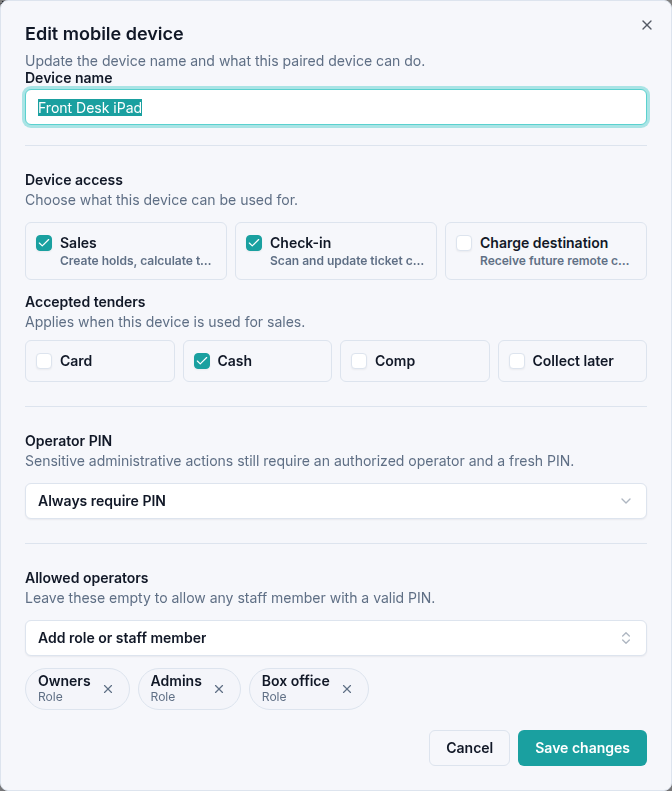
Cancel closes the editor without saving the current changes. Editing the settings keeps the existing device record; you do not need a new pairing code just to rename it or update these choices.
Revoke a device
Use this when equipment should no longer have access to the organization.
- Check the device name carefully, then select Revoke.
- Wait for Device revoked.
- Refresh or reopen the page. The device appears under Revoked devices and is no longer listed as an active paired device.
Revocation applies when you select the action. The revoked entry no longer provides Edit or Revoke controls. If equipment needs to be set up again, start with a new pairing invitation.
If an edit or revocation fails, include the organization, device name, and message shown when you contact support. Keep pairing codes and operator PINs private.