Sell passes at the box office
Staff with box-office sales access can sell passes from a published or draft collection in the organizer dashboard. The collection must have an available pass option; draft collections remain unavailable on the public listing.
Start a pass sale
Choose any of these starting points:
- On Collections, select Sell for the collection. On a narrow screen, open the row's actions menu to find Sell.
- On Box Office, use the Passes panel to choose a collection, then select Continue. On a narrow screen, select the Passes tab first.
- On Passes, select New Sale, then choose a collection in the Passes panel and select Continue.
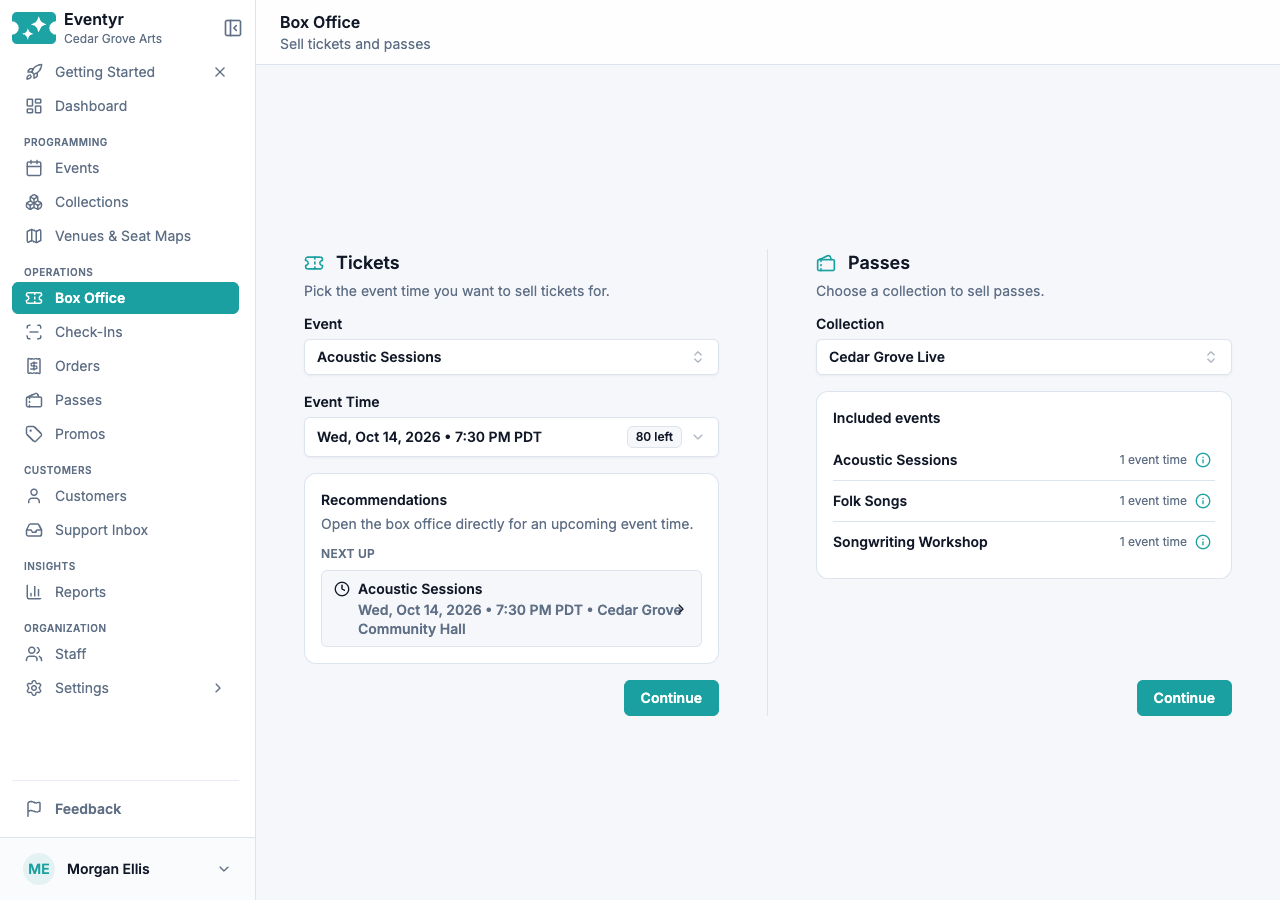
All three open the same sale screen for the selected collection. If Sell is unavailable, review the collection's expiry, pass options, and eligible event times before trying again. Publishing the collection is not required for a box-office sale.
Configure the passes
- Choose Flex, Series, or Build Your Own Pass, then select a pass option.
- Set the quantity for each price tier. You can combine tiers within that option, such as one Adult and one Student pass.
- For Series, choose a named series and its event times. For Build Your Own Pass, choose the required number of distinct eligible event times across the collection. Eventyr offers one shared selection when possible or guides you through each event time. Select the requested seats or general-admission quantities. Those admissions are held while you finish the sale.
- Review the pass summary. Choose Card, Cash, Comp, or Collect Later beside it. On a narrow screen, open Take Payment from the Order Summary step to choose a method.
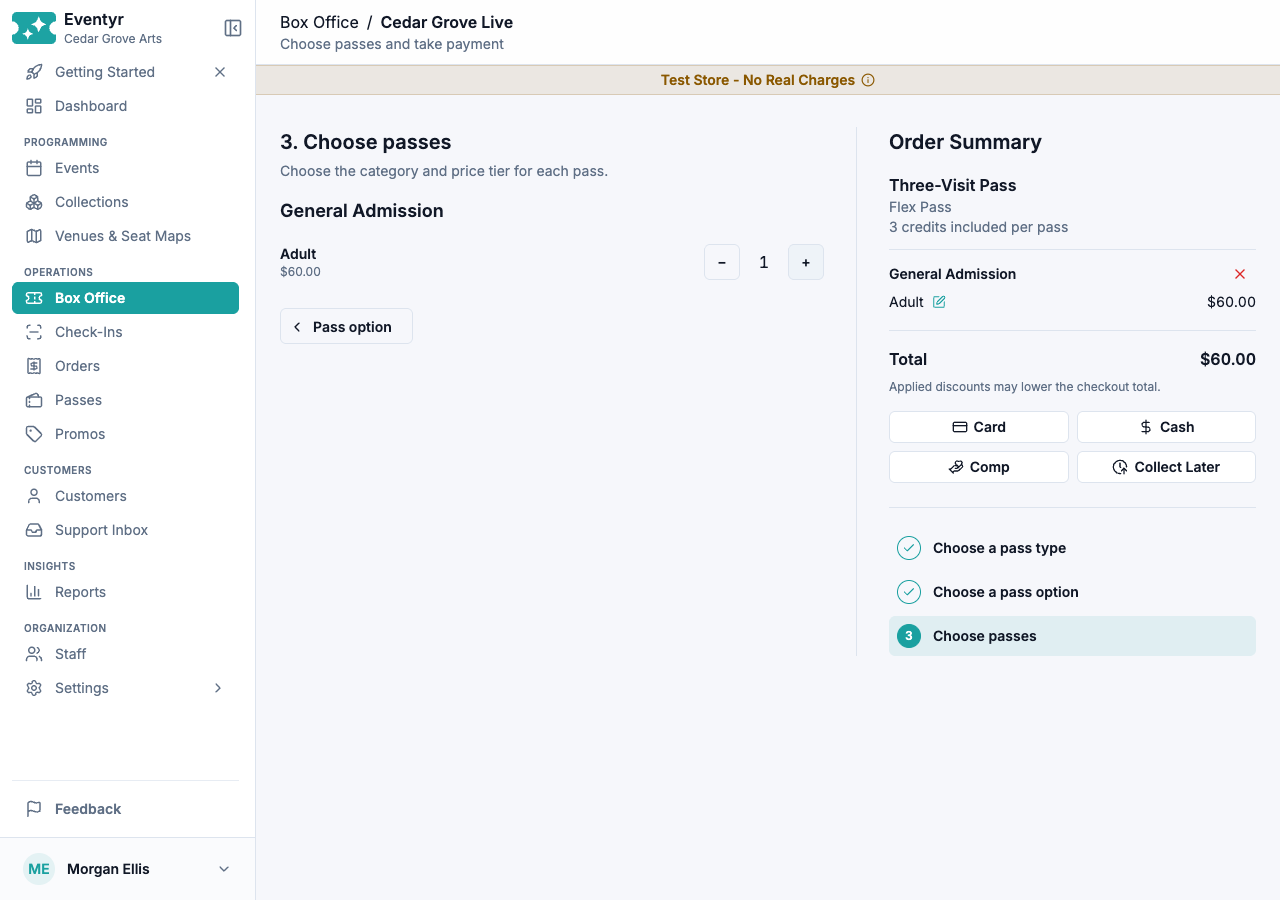
Each order uses one pass option. To sell a different option, complete another sale.
Choose the customer and payment
Use Create or find a customer to select an existing customer or enter new details. Every pass sale requires a customer name and email address so the customer can access their passes and receive updates. For Collect Later, Eventyr uses that address to send payment instructions.
The payment window shows the final amount before you complete the sale:
- Card: select a registered reader, send the payment, and wait for Eventyr to confirm it. Set up Stripe Terminal before taking card payments.
- Cash: enter the amount received. The sale shows any change due.
- Comp: issue the pass without collecting payment. A promotion code cannot be combined with a comp sale.
- Collect Later: create the order with payment still due. Open the order afterward to manage its payment link and balance.
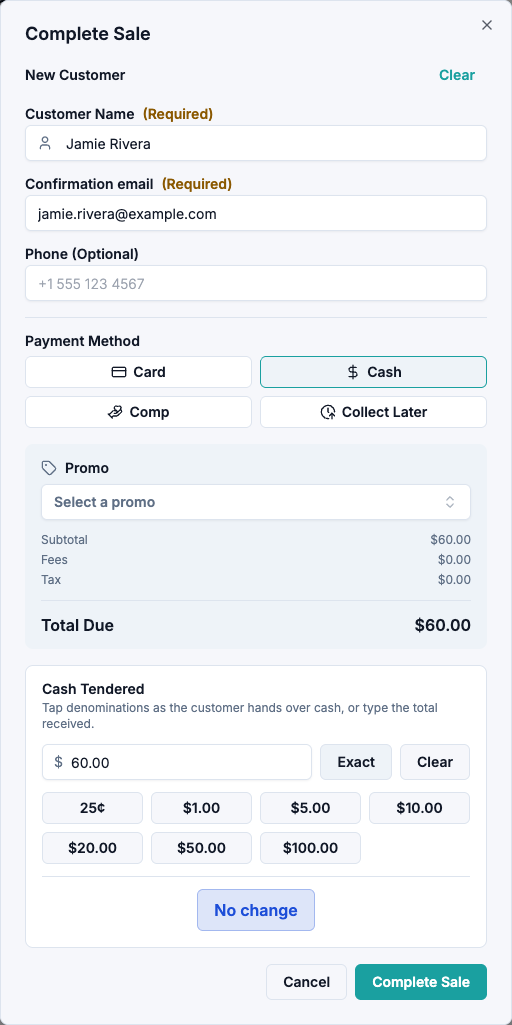
You can turn off customer fees when your box-office policy permits it and search for an applicable promotion in the payment window. Check the updated total whenever you change fees or promotion.
After completion, open the order to review its payment status and issued passes. For a Series or Build Your Own Pass, confirm the booked event times. A Flex pass gives the customer credits to redeem later; buying it alone does not reserve admission.