Make a card-present sale
Use Card when the customer is present and will pay through your terminal. You need box-office access, a configured organization payment account, and an available registered standalone reader. These steps describe the web box office.
Choose the tickets
- Open Box Office, choose the Event and Event Time, and select Continue.
- For general admission, set the quantities for the intended categories and price tiers. For reserved seating, select available seats and their tiers.
- Review the selected tickets and total. On a phone, select Review Order.
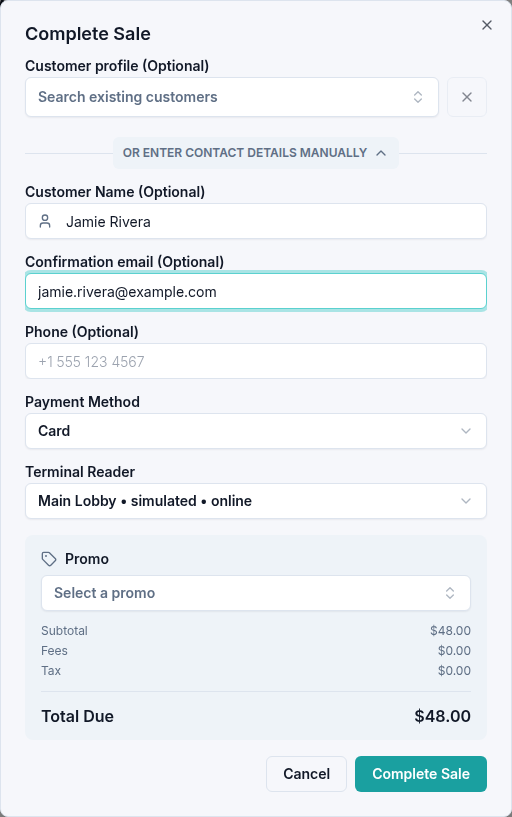
- Select Card to open Complete Sale.
Send the sale to the reader
- Under Customer, use Create or find a customer to select an existing profile or enter new customer details if needed. Check the email address if providing an emailed confirmation.
- Under Terminal Reader, choose the reader you are using. Check its name and status rather than assuming the previously selected reader is correct.
- Review the tickets and final amount, then select Complete Sale.
- Ask the customer to follow the payment instructions on that reader.
- Wait for Eventyr to confirm Sale Complete. Check the ticket count and order reference, and use Print Receipt if needed.
Sending the request to the reader is not confirmation that the payment succeeded. Keep the current sale open until its outcome is known.
If payment does not complete
Read the status displayed in Eventyr. A waiting or checking message means the result is still being resolved. Select Cancel Sale to return to the sale details without clearing the ticket selection. If the reader declines the card, review the error beside Terminal Reader and submit again when ready.
Do not start a second sale while the first payment is unresolved. If the reader and Eventyr appear to disagree, find the order and review its payment status. Contact Us with the order reference, reader name, and message if you cannot establish the result.
For an existing collect-later booking, use Settling a collect-later order instead of creating a new order.
Check in attendees
If the customer is arriving now and you have permission to check in attendees, use the controls in Sale Complete:
- Check the number of tickets ready to check in.
- For a group that has all arrived, select Check In All.
- For part of a group, expand Check in individual tickets, match each attendee's ticket code, and select Check In beside that ticket.
- Check the updated count before closing the confirmation.
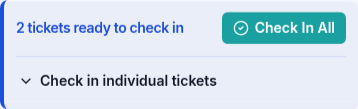
Use Undo All or an individual ticket's Undo to correct an accidental check-in. This changes attendance, not the booking or payment.
After closing the confirmation, use the attendee check-in screen to find the booking and manage attendance.
If a check-in update fails, check the current ticket status before trying again. Contact Us with the event time, order reference, and message if you need help.