Managing payment links
Use payment links when a customer needs to pay the balance of an existing booking. You need access to the order's payment actions. For a new booking, start with Collect payment later.
Open the payment actions
- Find and open the order.
- Expand View notices and find Payment outstanding.
- Select Collect payment to open Next Step for Balance Due.
- Choose Payment Link if another payment method is selected.
Share payment instructions
Send instructions by email or create a link to share with the intended payer.
Email payment instructions
Check the customer's email address shown in the dialog, then select Send by email. Wait for Sent payment link to followed by the intended address. The original Collect Later booking already sends a balance-due email; send another when the customer needs new payment instructions.
Sending a link does not mark the order as paid. If the customer pays in person with cash instead, follow the cash balance-payment steps.
Create a shared link
Select Create payment link. The dialog shows a Payment link field and QR code for that booking. Share payment instructions only with the intended payer. Keep the link and QR code out of public posts and screenshots.
Manage existing links
Replace or revoke a link when the old payment instructions should stop working.
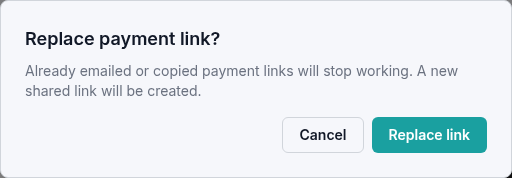
Replace a link
Use Replace when the existing shared link should stop working and you need a new one.
- Select Replace beside the current link.
- Read Replace payment link? Old emailed and copied payment links will stop working.
- Select Replace link, or Cancel to keep the existing links.
- Give the payer the new link instead of the old one.
Revoke a link
Select Revoke, then confirm Revoke link. The payment request changes to Revoked, and the old links can no longer be used to open payment instructions. You can select Create payment link later when you are ready to provide a fresh one.
Replacing or revoking links leaves the booking and its unpaid balance in place. It does not record payment or cancel the tickets.
If a customer cannot open a link
An obsolete link shows Payment link unavailable and asks the customer to contact you for a new link. After replacement or revocation, provide a fresh payment link. Check the order and recipient address before sending it.
If the balance or link status looks wrong, reopen the order and review its payment notices. Include the order reference and exact message when contacting support; do not include the private link or QR code.