Add complimentary pass credits
Use Grant Credits to add complimentary visits to an active pass. You need permission to manage passes. Check the intended number with the customer before saving.
Grant the credits
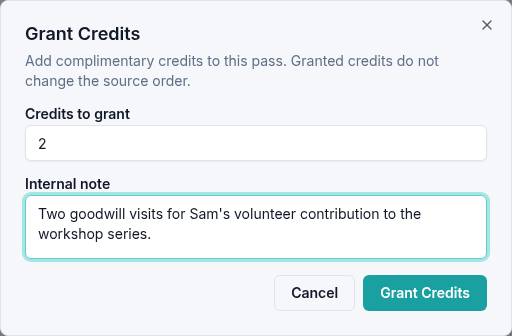
- Locate and open the customer's pass.
- Open Page actions → Grant Credits.
- Enter a positive whole number in Credits to grant.
- Add an Internal note explaining the grant.
- Select Grant Credits and wait for Credits granted.
- Reload the pass and check the updated credit balance.
For example, adding two credits to an unused three-credit pass gives the customer five available visits. Their wallet then shows 0 / 5 used. The original purchase and payment stay unchanged.
Correct or cancel an entry
A value of 0 produces Enter a credit amount greater than zero. Correct the
amount before trying again.
Cancel closes the dialog without adding credits. Reopening it starts at one credit with a blank note, so enter the intended amount again.
A grant adds available credits; it does not book an event time. To help the customer choose a date, see Redeem a customer's pass.
If the balance looks wrong, include the pass reference and intended grant amount when you contact support.
To review a credit change or correct an eligible unused grant or release, see Undo a credit change.