Update customer details
Use Customers to find a customer's profile and keep their contact details current. You need access to customer records and permission to edit profiles. Changing these details does not transfer their bookings to someone else.
Find the customer
- Open Customers in the organizer workspace.
- Search for the customer's email address or name.
- Select their name to open Overview. Check that you have the right person before making changes.
If No customers found appears, check the spelling or try a different search. You can also find the order if the customer has an order reference.
Edit contact details
- Select Edit Profile to open Edit Customer Profile.
- Update Display name and Primary communication email. The display name cannot be empty, and the email address must be valid.
- To add another address, enter it under Additional communication emails, then select Add or press Enter. Each address must be different from the primary address and other addresses already listed.
- Update Primary phone if needed, including the country code.
- Select Save Changes. Reopen Edit Profile to check the saved details.
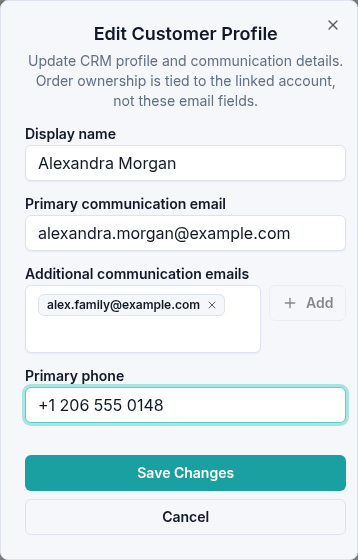
To remove an additional email, use the Remove control beside that address, then Save Changes. Select Cancel to discard an unsaved edit.
You can find the profile again using the updated communication email. These email fields are contact details; changing them does not change the linked account or give another person ownership of existing orders. Use order transfer when ownership needs to change.
If a change cannot be saved, read the message and check the email or phone format. Include the customer name, organization, and exact error message when contacting support.