Internal customer notes
Use Follow-Up on a customer's profile to keep notes for your team. You need access to customer records and support features. Notes are internal context; use a follow-up task when someone needs to take action.
Add a note
- Find and open the customer.
- Select Follow-Up, then Add Note beside Recent Notes.
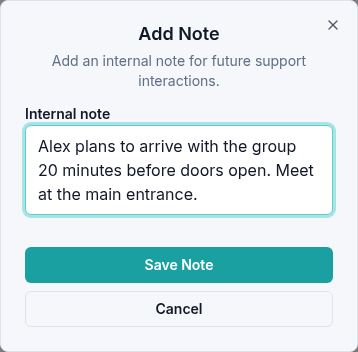
- Enter the relevant information in Internal note. For example, record where a group plans to meet your event-day volunteer.
- Select Save Note. Check that it appears under Recent Notes.
Edit or archive a note
Open Note actions (the three-dot menu) beside the note:
- Select Edit, change Internal note, and select Save Changes to correct or update it.
- Select Archive, then confirm Archive in Archive Note to remove it from recent notes. It remains available in history.
Restore an archived note
Expand Archived Notes using Show archived notes. Find the note, open Archived note actions, and select Restore. It returns to Recent Notes.
After saving or restoring, check that the expected text appears. If an action fails, reopen the profile to check the saved state before repeating it. Include the customer name and exact message when contacting support.