Set fee refund and exchange policies
Open Settings → Policies with permission to manage fee settings. Refunds and exchanges have separate Save buttons. Review the explanation below each choice before saving it.
Save refund policies
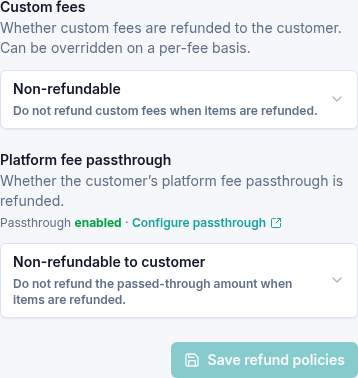
- In Refunds, set Custom fees to Refundable or Non-refundable.
- Set Platform fee passthrough to Refundable to customer or Non-refundable to customer.
- Select Save refund policies and wait for Refund policies saved.
- Reload to check both saved choices.
The page explains that refundable custom fees are proportional to the refunded items, and individual fees can override the default. For passed-through fees, the customer's refund choice is separate from the platform fee charged to your organization; read the description shown with the option.
Save exchange policies
- In Exchanges, choose the setting for Order-level custom fees.
- Choose the setting for Item-level custom fees. Its options also include Apply fee difference.
- Choose the setting for Platform fee passthrough.
- Select Save exchange policies and wait for Exchange policies saved.
- Reload to check all three choices.
Use the explanations beneath the choices to distinguish fees on an additional balance, differences between item fees, and Do not apply. A custom fee may have its own override, so review the fee itself when a result is unexpected.
Check whether passthrough is enabled
The platform-fee fields show Passthrough enabled or Passthrough disabled. Configure passthrough opens the setting for who pays the platform fee. Changing that setting does not discard these saved policy choices.
See Choose who pays the platform fee and Managing custom fees.
Before completing an actual refund or exchange, review its quoted amounts and customer outcome. If those differ from your expectation, share the order number and relevant fee settings with support.