Adding custom purchase terms
Use purchase terms for conditions customers need to review before booking an event or buying a pass. You need permission to edit the event or collection; an organization owner can complete these steps.
Have your organization's approved wording ready before changing the terms. This guide explains where to enter and review it.
Save the event terms
- Open the event and select Settings & Policies.
- Find Purchase Terms.
- Enter the terms in the editor.
- Select Save terms and wait for Purchase terms saved.
- Reload the page and check the saved wording.
For example, a community event might include its arrival time and late-entry conditions. Use wording that reflects your actual event and policy.
Save a collection's terms
- Open Collections and select the collection.
- Open Policies & Settings and find Purchase terms.
- Enter the approved wording in that editor.
- Select Save terms and wait for Purchase terms saved.
- Reload and check the saved wording.
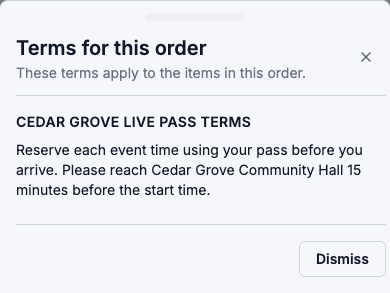
The collection's credit policies and purchase terms have separate save controls. Use Save terms for this change. For example, explain that customers must reserve each event time using their pass before arriving.
Check the customer view
Open the event's public page, select Buy Tickets, and choose an admission. Continue to checkout; on a phone, use Review Summary, then Continue.
For a collection, open its public page and select Configure Passes. Choose the pass type, option, and quantity, then select Checkout. On a phone, select Continue to review order first.
Select Purchase Terms to open Terms for this order. Check that the correct event or collection's terms appear and are readable. Select Dismiss to return to checkout.
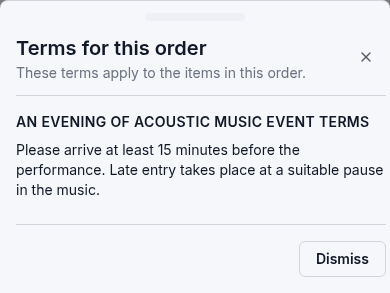
The checkout notice explains that placing the order agrees to the applicable purchase terms. Opening or dismissing the terms does not itself place an order. You can leave checkout after reviewing them if you are only checking the wording.
If the expected terms are missing
Confirm that you saved the terms on the correct event or collection and reloaded the editor. Check that your checkout contains the intended tickets or pass.
If the saved wording still does not appear, contact support with the event or collection name and the step where it differs.