Managing embed appearances
Save an appearance when you want several widgets to use the same theme, colors, and layout. Open Settings → Embed; on a phone, open Embed Options to reach the controls.
Save your first appearance
- Adjust Theme, colors, and Layout while checking the preview.
- Open Preset actions and select Save as new.
- Enter a Name, such as “Cedar Grove Green.”
- Review Use as default. It starts selected for your first saved preset.
- Select Save Preset.
Your name now appears in Appearance preset. A default appearance loads when you reopen the settings. It does not save the starting event or catalog; select the right Starting target before copying new embed code.
Update an appearance
Choose it in Appearance preset, change its settings, and select Save preset changes. For example, Layout → Compact uses a stacked layout even when the host page is wide.
Reload the settings to check your saved values. To use the new appearance on a website, generate and replace that website's embed code. Existing code keeps its earlier appearance.
Delete an appearance
- Select it in Appearance preset.
- Open Preset actions and select Delete.
- Review the named confirmation. Select Cancel to keep it, or Delete preset to remove it permanently.
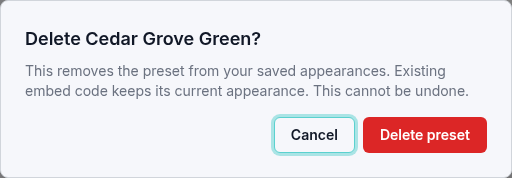
Deleting the saved appearance does not remove widgets already placed on websites. Their existing code continues to use the appearance it contains. The settings return to an available default appearance.
Return to Embed ticketing on your website for target selection and website setup. If saved settings do not match after reloading, contact support with the preset name.