Embed ticketing on your website
Let visitors browse your Eventyr events inside your own website. You need access to your organization's Settings, permission to manage its branding, and someone who can add embed code to your website.
Choose what visitors see
- Open Settings, then Embed. On a phone, open Embed Options.
- Under Starting target, choose the content you want to show. For one event time's event, choose Specific event, then select the Event.
- Choose a Theme, such as Light, and adjust colors if needed.
- Review the Preview. On a phone, select Done to return to it.
A specific-event widget keeps browsing within that event. Choose an organization or events catalog when visitors should be able to browse more than one event. Check that the event you want is published and available if it does not appear in the selector.
You can save an appearance for reuse. The appearance and the starting target are separate choices: reopening the settings does not restore the event you selected previously.
Allow your website
In Allowed embed websites, enter your website's hostname and select Add website. Add each hostname where the widget will run. Public websites must use HTTPS.
Check the status shown below the hostname. Development only identifies a local development website; it does not confirm readiness for payments on a public website. Review payment setup before offering paid checkout.
Use the remove button next to a hostname when that website should no longer be allowed to run your widget. Reload the settings to check the saved list.
Add the code
- With the intended target and appearance selected, open Embed Code.
- Copy the code from the field, or select Copy code.
- Add it to the page using your website's custom HTML or embed-code controls. Ask the person who manages your website if it does not offer those controls.
- Open the finished page as a visitor. Confirm the correct event appears and that Buy Tickets takes visitors to the expected ticket choices.
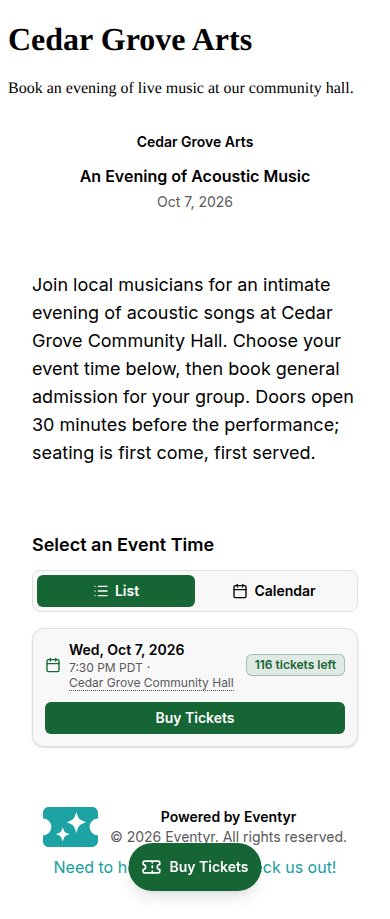
Use a narrow screen as well as a desktop to check the result. If you change an appearance later, copy the new code to update an existing widget; code already on a website keeps the appearance it was created with.
If the widget does not appear, check the allowed hostname, the event's availability, and whether your website permits the full embed code. Share the website address and event name with support if needed.