Changing team member roles
Keep team access aligned with each colleague's responsibilities. You need permission to manage staff. Organization owners have this permission.
Change an active member's role
- Open Staff in your organization's administration area.
- Open the three-dot actions menu beside the colleague and select Edit Role.
- Choose the new Role.
- Select Update Role.
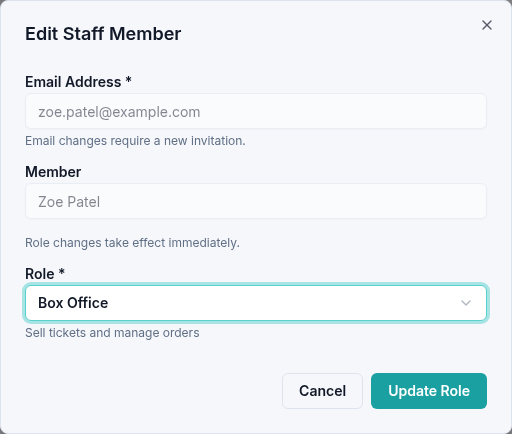
Eventyr confirms Staff role updated. The member's email cannot be changed in this dialog. The new role changes the areas and actions they can access. For example, changing a Reports Only member to Box Office lets them open the box office.
To end a membership instead, see Removing team members.