Invite team members
Invite colleagues to your organization so they can use Eventyr with their own accounts. Choose a role that matches the work they need to do.
You need permission to manage staff. Organization owners have this permission. If you see Access restricted, ask your organization administrator to manage the invitation.
Send an invitation
- Open Staff in your organization's administration area.
- Select Invite Staff.
- Enter your colleague's Email Address.
- Choose a Role. For example, Reports Only gives a colleague access to reports without permission to manage staff.
- Select Send Invitation.
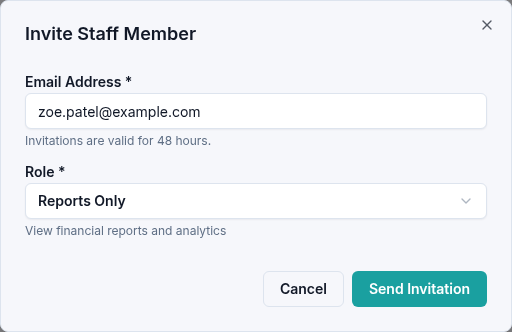
The colleague appears in the staff list as a pending invitation. They must open the email and accept the invitation before they become an active member.
Resend a pending invitation
Find the colleague in Staff, open the three-dot actions menu beside their entry, and select Resend Invitation. Eventyr confirms that the new invitation is valid for 48 hours. Ask your colleague to use the newest email.
Check the address for spelling mistakes and ask the recipient to check their junk or spam folder if they cannot find it. Do not forward an invitation link to a different person.
After the colleague joins
You can change their role or remove their membership from Staff. Each colleague's role determines the pages and actions they can use; joining an organization does not give everyone owner permissions.