Buy a Series Pass
A Series Pass books a particular set of event times together. Check every date and time before buying. Unlike a Flex Pass, you select the series during the purchase instead of redeeming credits for individual event times later.
Choose the series
- Open the organizer's public pass page and select Configure Passes.
- Choose Series Pass, then the pass option you want.
- Select an available series and review its included event times. Check the event names, dates, times, and venues. Choose exactly the number of distinct event times required by the pass option from within that Series.
- Continue to choose passes or seats. On a phone, the suggested seating choice appears first; continue to the map or quantity selection. On a computer, the seating choices appear above the selection area.
Choose your passes or seats
For general admission, use + beside the category and price tier you want. Use − to reduce the quantity. Check the price and number of passes before continuing.
If the series presents a seating map, choose from the available seats and price tiers shown. A shared selection applies to every chosen event time. Select Different seats for each event time to choose separately.
For different seating arrangements or insufficient common availability, follow the event times in date order. The first selection sets your passes, category, price tier, and package price; choose an admission for each pass at every remaining event time. The current event time stays visible beside the navigation controls. Use Next event time to continue and Previous event time to revisit saved selections. Review the actual admissions for every event time before checkout. Checkout is available once the complete selection is reserved.
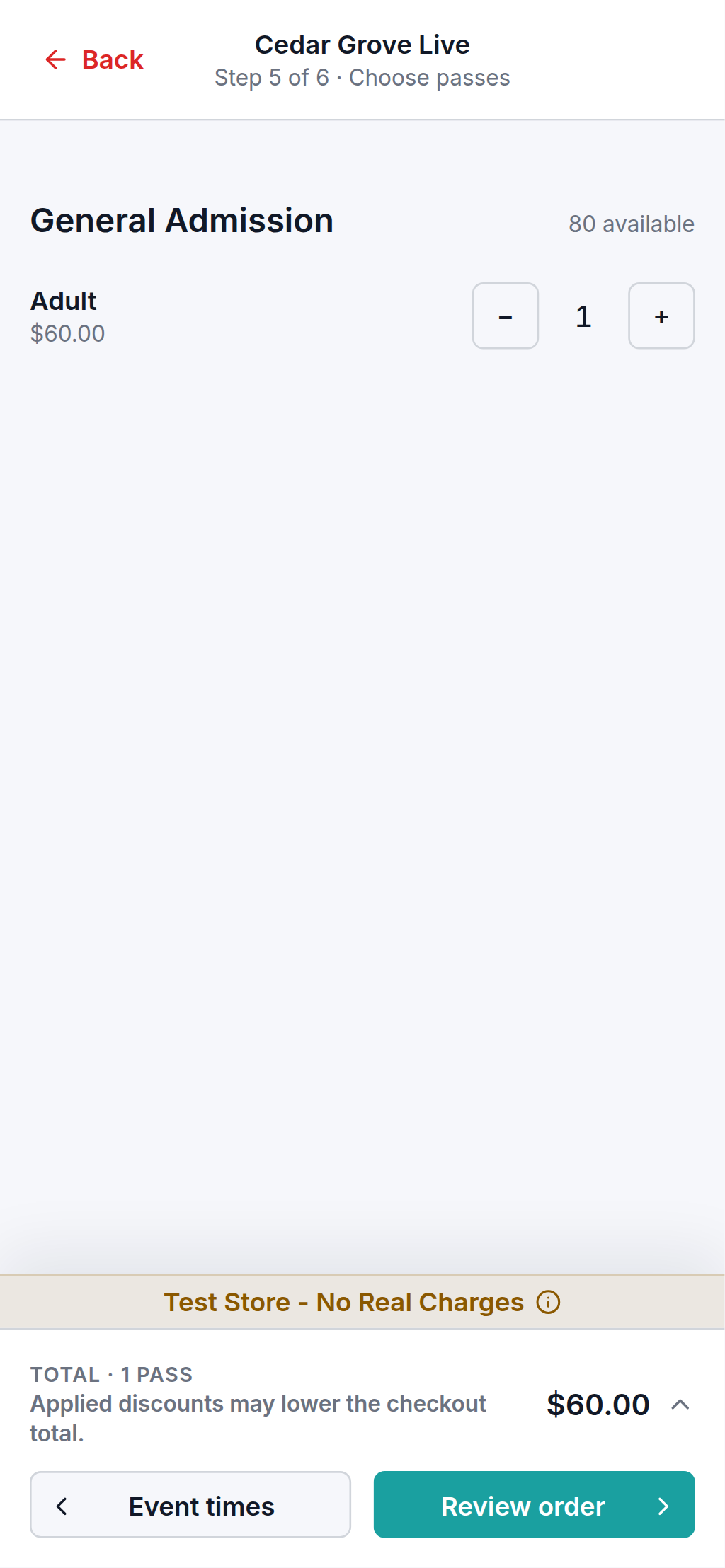
On a phone, select Review order. Check the series, selected passes or seats, and total, then select Checkout. On a computer, use Checkout in the order summary.
Apply a promo code
If the organizer gives you a promo code, apply it at checkout before completing the order. The offer must cover your selected tickets or passes.
- Select Got a promo code? Click here.
- Enter the code in Promo code, then select Apply.
- Review the offer name, code, Discount, and updated Total in the order summary. On a phone, expand the summary if needed.
- Check that the discount matches the offer before proceeding. Additional tickets or passes, fees, or taxes may leave an amount to pay.
Entering a code alone does not apply it. To remove or replace it, select Clear promo code (the × beside the applied code), check the updated total, then enter another code and select Apply if needed.
If the final total is zero, select Confirm order after completing your contact details and reviewing the purchase terms. Otherwise, complete payment. An applied discount is not a completed booking: wait for the order confirmation.
If a code does not work, check its spelling and the event, event time, collection, pass option, price tier, and quantity covered by the offer. Codes can expire, become inactive, or reach their usage limits. Contact the organizer before completing the order if the discount is not what you expected.
Complete checkout
- Enter your Name and Email under Your details. Use an email address you can access; you will use it to find the pass in your wallet. Complete any other required contact fields.
- Review the pass option, quantity, final total, and purchase terms. If you have an organizer's code, apply it before completing your order.
- If payment is due, enter the details for a payment method offered at checkout and select Pay with the amount shown. Complete any verification requested by your payment provider. If the final total is zero, select Confirm order instead; no card details are needed.
- Wait for the confirmation page and keep your order reference. Choosing a pass or applying a discount does not complete the booking.
Find your booked event times
Open your wallet with the booking email. Find the pass under Passes and the booked event tickets under Tickets. A series covering three event times can issue three tickets for one pass; you do not need to redeem those event times again as Flex credits.
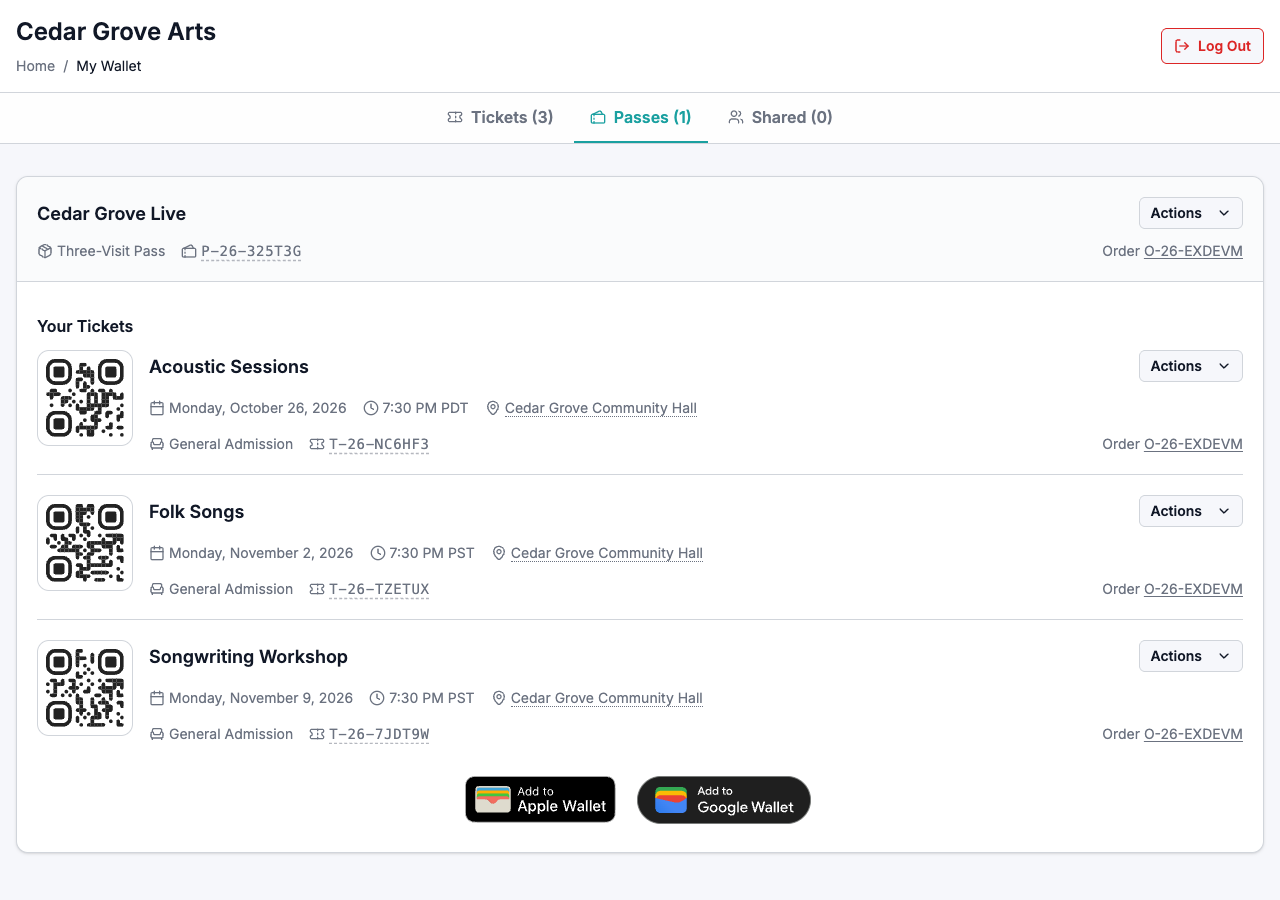
Check the dates and prepare your tickets for admission.
If something goes wrong
If a series or seat is unavailable, review the remaining options or contact the organizer. Follow any checkout error shown. If you are unsure whether an order completed, check your confirmation email and wallet before placing another one.
For missing event times or changes to a booked series, contact the organizer with your order reference and the affected event dates.